Created by Jag Nanda and Kurt Covaine Escaño
Recently Sheridan College has determined that the funding model used to support the shuttle bus service has become unsustainable. As a result, the service is expected to be cancelled and force students to take the public transit. As a compromise, the college has introduced the Universal Transit Pass (U-Pass) which allows students to have unlimited rides on the Oakville, Mississauga, and Brampton transit routes. While this may be suitable for a few students, it will significantly impact other students. The biggest downside is that the transit is slower compared to the shuttle bus. As a result, we have decided on making a carpool app specific to Sheridan College. The app will allow students to sign up and have the option to switch account type either as a driver or a rider. They will be able to enter schedule times and destinations options between all three campuses.
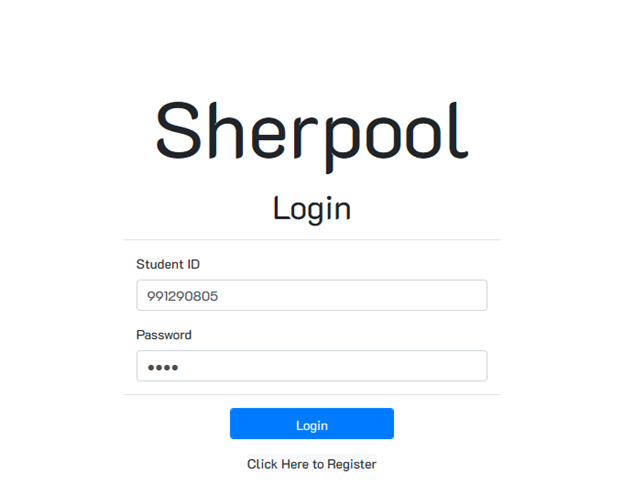
The Login page is where the student can decide whether to login or to register if they have not done so before. They cannot login without registering first.
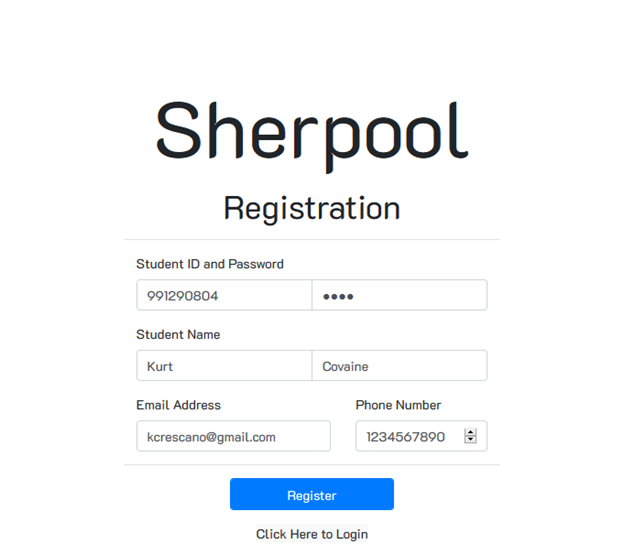
The registration page is where the student fills out their information to be stored in the database. By default, all students that register are “Riders.” Meaning that they are eligible to reserve seats for themselves in scheduled pickups which are set up by “Drivers”.
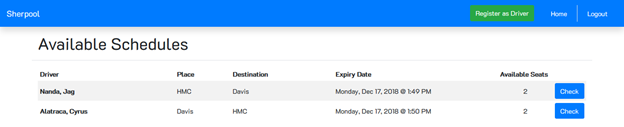
This is the page the user sees after logging in. They are able to see what rides are available, from which campus to another campus, when the Driver is set to depart, and how many seats are available in the Driver’s vehicle. From here the user can choose to check each schedules’ details.
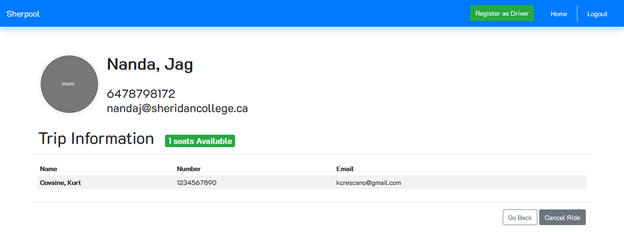
The riders schedule inspection page allows the user to get more details to see who their driver is, their phone number, email address, vehicle information, and who the other riders of the car will be. It also allows them to reserve a spot in the vehicle if they so desire.
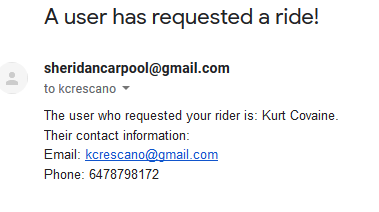
After reserving a seat, the rider (the person who reserved the seat) will get an email notification from the sheridancarpool@gmail.com email address.
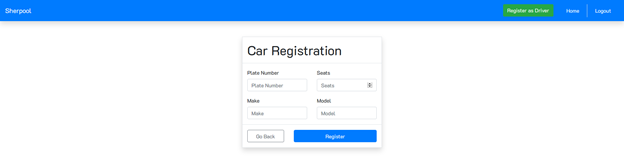 A rider can at anytime register as a Driver by click the green button in the top right and it will bring the user to this page. They will need to fill in their plate number, make, model and the passenger capacity.
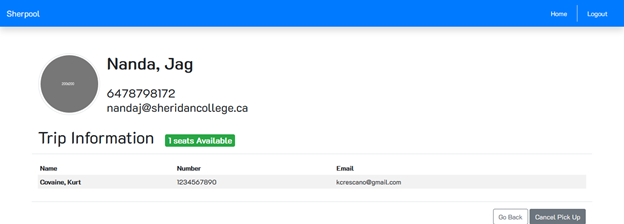 From this screen, the driver is able to see what schedules they’ve setup and the overview of each. Clicking Check will allow the driver to see the details of scheduled trip. On this screen, the driver is able to see who is riding in their car, their number, email and how many seats are available in that ride. If they so wish, they can cancel the scheduled trip all together.