P4SimpleScc is a Visual Studio Extension Source Control Client for Perforce (Helix Core).
The "simple" part of this extension is that it only does two things. It can check files out from a Perforce server when they are modified (or when they are saved) and it can revert files that were checked out from a Perforce server. It doesn't do anything else. It doesn't submit changelists of files. It doesn't diff files. It doesn't shelve files. It doesn't show history or time-lapse view of files. It doesn't show a revision graph of files. All of those functions can be performed in P4V instead of implementing that same interface in Visual Studio.
If all you want is to check out files when modified, and you want something small, fast and efficient, then P4SimpleScc does that task well.
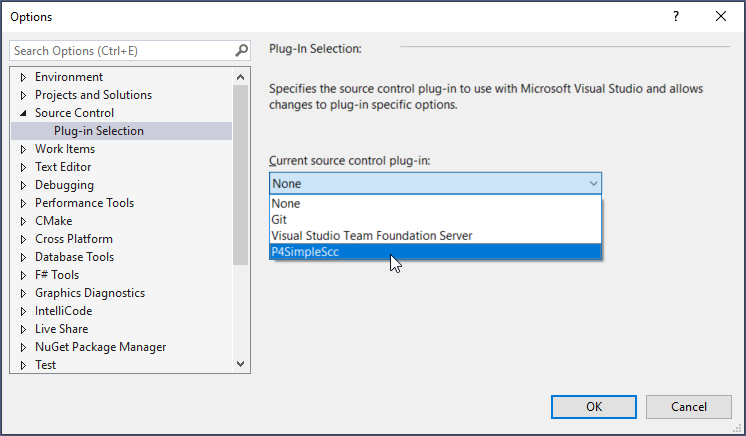
To use P4SimpleScc, just install the extension (there's one for Visual Studio 2019, one for Visual Studio 2022 and one for Visual Studio 2026), then start up Visual Studio and click on "Tools -> Options" from the main menu. Expand the 'Source Control' group and select 'P4SimpleScc' from the 'Current source control plug-in:' drop down and click "OK". That will enable the P4SimpleScc provider.
While the P4SimpleScc client is active, you can click on 'Extensions' in the main menu and you should see a 'P4SimpleScc' menu (this menu is hidden if P4SimpleScc is not the active source control provider). If a solution is loaded, you can then click on the 'Solution Configuration' menu item to enable source control on the currently loaded solution.

The solution configuration dialog looks like this:
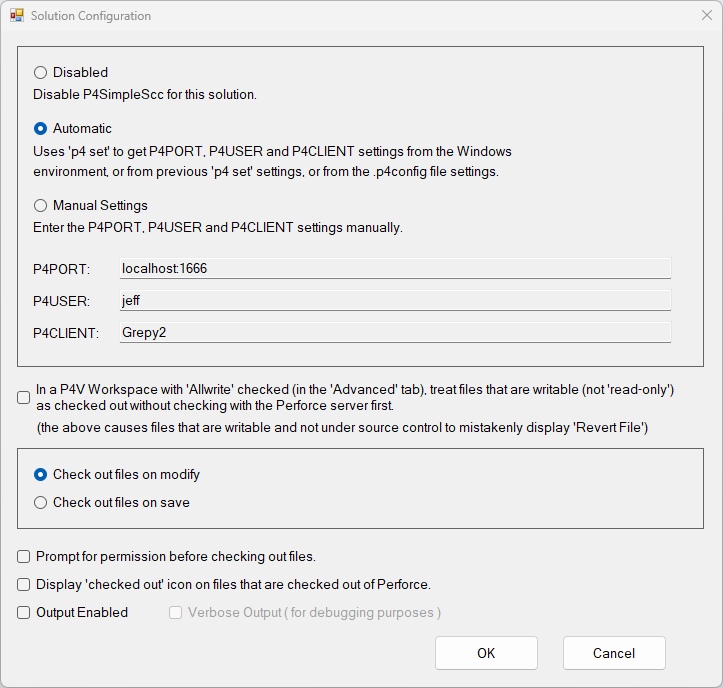
There are three choices at the top, 'Disabled, 'Automatic' and 'Manual'. 'Disable' will disable P4SimpleScc provider control for this solution. 'Automatic' will use the console command "p4 set" to automatically gather the settings for P4PORT, P4USER and P4CLIENT which can come from the Windows environment, from a previous 'p4 set' command, or from a .p4config file (as long as the P4CONFIG setting has previously been set using 'p4 set P4CONFIG=' followed by the .p4config file name). You can also use 'Manual' to set the 'P4PORT', 'P4USER' and 'P4CLIENT' settings manually. Each of these settings must be non-blank and will be validated with the Perforce (Helix Core) server to make sure they are correct. P4PORT will be the server name and port number (separated by a ':'). P4USER will be your username on the Perforce server. P4CLIENT will be your workspace name on the Perforce server for where you have the solution and files (although the solution .sln file doesn't have to be under Perforce control).
There is an option to support P4V Workspaces where 'Allwrite' is checked in the Advanced tab when editing the Workspace in P4V. In P4V, Allwrite makes all files writable (not read-only) when syncing from Perforce (whether they are checked out or not). Usually files that aren't checked out are read-only and then when the file gets checked out the read-only status is changed to writable in Windows. This "In a P4V Workspace with 'Allwrite' checked..." option means that if you have 'Allwrite' enabled in the Workspace, then P4SimpleScc will not check with the Perforce server to see if a file is checked out or not and will instead assume the file is checked out already if the file is not read-only. You can disconnect from the Perforce server and modify those files that are writable and then when you are done making changes can use "Reconcile Offline Work..." in P4V to check out files that were modified so that you can submit them. This is not a typical workflow since most people don't disconnect from the Perforce server while working on projects. The default for this setting is 'unchecked'. (Checking this checkbox will cause P4SimpleScc to assume that writable files can be reverted and will display "Revert File" even if the file is not checked out. Reverting a file will ALWAYS try to issue a 'revert' command to the Perforce server.)
You can also select whether you want to check out files when they are modified or wait and check them out when the changes to the file have been saved. Waiting until the file is saved means that you can "undo" changes to a file if you modified it by mistake and it won't be checked out from Perforce until you save it, so you won't have to revert that file later. If you had selected 'Check out files on modify' it would have been checked out as soon as you accidentally modified it.
There is an option to prompt you with a dialog to verify that it is okay to check out each file before doing so (otherwise, the file will automatically be checked out upon modify/save).
There is an option to display a 'checked out' icon on the left of files in the Solution Explorer when those files are checked out of Perforce. This is disabled by default. Having this option checked can cause performance issues if you have lots of files checked out of Perforce when opening the Solution (or Workspace). P4SimpleScc will warn you if you have more than 100 files checked out when loading a solution and will automatically NOT display the 'checked out' icon for those file (to prevent Visual Studio from hanging for a long period of time).
There is an option to enable or disable the 'P4SimpleScc' Output pane in the Output Window. By default, this output is disabled. If you enable output, you can also enable 'Verbose Output' which outputs the response to all P4 commands that are issued to the server by the P4SimpleScc extension. The 'Verbose Output' is normally not needed unless you are trying to debug why some operation in P4SimpleScc is failing.
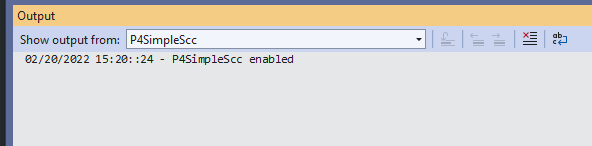
If you have 'Output Enabled' checked in the Solution Configuration, when the P4SimpleScc provider is enabled, you can see status messages from it by opening the Output window ("View -> Output" from the main menu, or Ctrl-Alt-O). Then select 'P4SimpleScc' in the 'Show output from:' drop down.
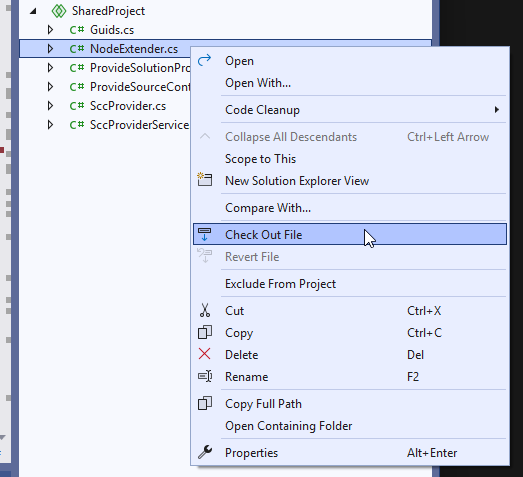
You can manually check out files by selecting one or more files in the Solution Explorer view, right clicking and selecting "Check Out File".
You can also open a file in the document editor and right click on the filename tab and select "Check Out File" from there.
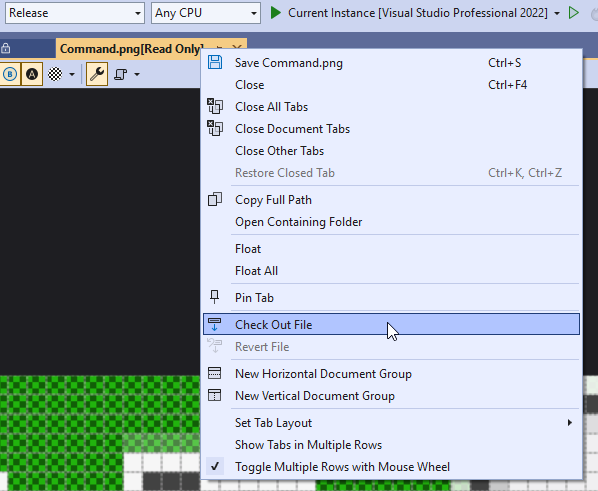
If you right click on a file and the file is already checked out, it will show "Check Out File" as being disabled and will show "Revert File" as being enabled. The "Check Out File" menu item and "Revert File" menu item will also both be disabled if you have P4SimpleScc set as the source control provider but have disabled it for the current solution.
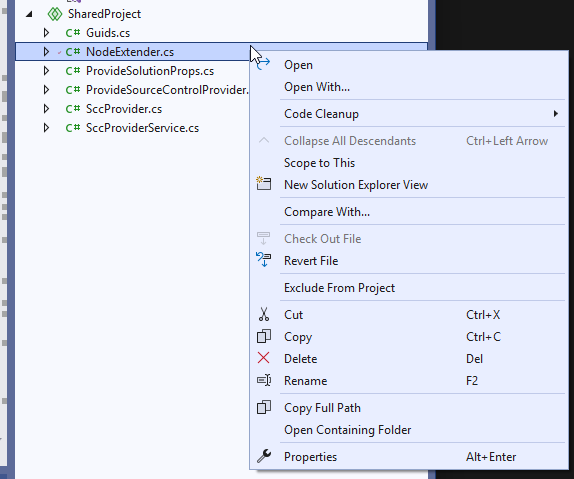
When you revert a file, you will always get a confirmation dialog verifying whether you want to revert the file or not (since reverting the file can be distructive and lose changes).
When files are checked out, you should see a little red "checked out" icon to the left of the file name in the Solution Explorer (or Workspace Explorer if you opened a folder instead of a solution). The "checked out" moniker that P4SimpleScc uses is the Visual Studio default source control icon. It can be a little bit more difficult to see in dark themes than in light themes...
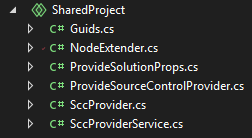
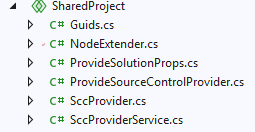
This 'checked out' moniker to the left of the file will not be displayed on the solution itself (even if the solution file is checked out) since I haven't found a way to get Visual Studio to display the icon on the solution itself. The 'checked out' moniker will be displayed on any projects within the solution that you have checked out. You can still check out and revert the solution, it just won't show the 'checked out' moniker.
If you need to reset the P4SimpleScc settings to the default settings:
Use Windows Explorer to look in the folder where the Solution file is located. There will be a hidden '.vs' folder where the solution .sln file is located. In that hidden '.vs' folder, you will find a folder with the same name as the solution file. Go into that folder and you should see either a 'v16', 'v17', or 'v18' folder (depending on whether you are using Visual Studio 2019, 2022, or 2026, respectively). Inside that folder, you should find a .suo file. P4SimpleScc saves its settings in that .suo file. If you delete that .suo file and start Visual Studio and load your solution, the settings will be reset back to default.
NOTE: If you have the P4VS extension installed, you may need to disable it (you don't need to uninstall, just disable) since the P4VS extension seems to want to make itself the active source control provider even if another provider was active or is controlling that solution.
See the Releases page to download the latest release.
- Author: Jeffrey "botman" Broome
- License: MIT