- 1. Create the example Site
- 2. Initialize the Git Repository
- 3. View the repository status
- 4. Stage a snapshot
- 5. Commit the Snapshot
- 6. View the repository History
- 7. Configure Git
- 8. Create New HTML files
- 9. Stage the New Files
- 10. Commit The new Files
- 11. Modify the HTML Pages
- 12. Stage and Commit the Snapshot
- 13. Explore the Repository
- 14. Conclusion
- 15. Quick Reference
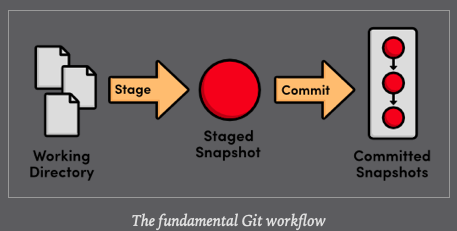
This module explores the fundamental Git workflow:
- creating a repository,
- staging and committing snapshots,
- configuring options,
- viewing the state of a repository.
<!DOCTYPE html>
<html lang="en">
<head>
  <title>A Colorful Website</title>
  <meta charset="utf-8" />
</head>
<body>
  <h1 style="color: #07F">A Colorful Website</h1>
  <p>This is a website about color!</p>

  <h2 style="color: #C00">News</h2>
  <ul>
    <li>Nothing going on (yet)</li>
  </ul>
</body>
</html>$ cd /Users/carlossantiagocruz/SWIFT-PROGRAMMING/RysGitTutorial- then initialize
$ git init- output
Initialized empty Git repository in /Users/carlossantiagocruz/Documents/SWIFT-PROGRAMMING/RysGitTutorialRepository/.git/$ git statusOn branch master
No commits yet
Untracked files:
(use "git add <file>..." to include in what will be committed)
index.html
nothing added to commit but untracked files present (use "git add" to track)- Git does not automatically track files because there are often project files that we don't want to keep under revision control.

- tell git to start tracking index.html
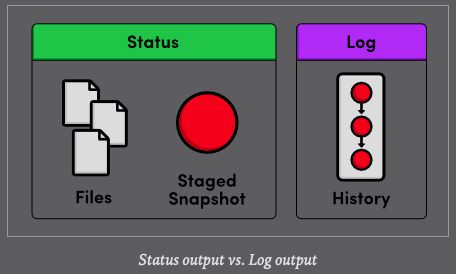
$ git add index.html$ git status- output
On branch master

No commits yet

Changes to be committed:
  (use "git rm --cached <file>..." to unstage)
	new file:   index.html
- A snapshot represents the state of your project at a given point in time.
- Git's term for creating a snapshot is called staging
- Staging give us the opportunity to group related changes into distinct snapshots.

$ git commit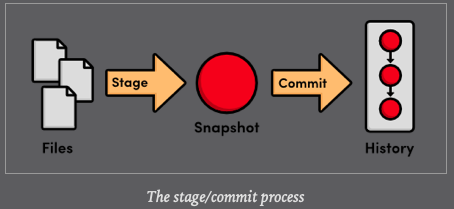
$ git log- output
commit 6a442fcc4ab51362713f09ed5eadc7af767db833
Author: c4arl0s <c.santiago.cruz@gmail.com>
Date:   Fri May 22 12:54:21 2020 -0500

Create index page for the message$ git config --global user.name "your name"
$ git config --global user.email your.email@example.com[re-read the book if you want more information]
- orange.html
<!DOCTYPE html>
<html lang="en">
<head>
  <title>The Orange Page</title>
  <meta charset="utf-8" />
</head>
<body>
  <h1 style="color: #F90">The Orange Page</h1>
  <p>Orange is so great it has a
  <span style="color: #F90">fruit</span> named after it.</p>
</body>
</html>- blue.html
<!DOCTYPE html>
<html lang="en">
<head>
  <title>The Blue Page</title>
  <meta charset="utf-8" />
</head>
<body>
  <h1 style="color: #00F">The Blue Page</h1>
  <p>Blue is the color of the sky.</p>
</body>
</html>$ git add orange.html blue.html$ git status- output
On branch master
Changes to be committed:
  (use "git restore --staged <file>..." to unstage)
	new file:   blue.html
	new file:   orange.html
$ git commit -m "add blue and orangle html file"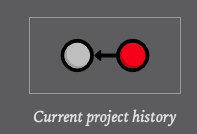
- add this at the end of index.html
<h2>Navigation</h2>
<ul>
  <li style="color: #F90">
    <a href="orange.html">The Orange Page</a>
  </li>
<li style="color: #00F">- add this at the end of orange.html
<p><a href="index.html">Return to home page</a></p>$ git status- output
On branch master
Changes not staged for commit:
  (use "git add <file>..." to update what will be committed)
  (use "git restore <file>..." to discard changes in working directory)
	modified:   index.html
	modified:   orange.html

no changes added to commit (use "git add" and/or "git commit -a")
$ git add index.html orange.html blue.html - status
On branch master
Changes to be committed:
  (use "git restore --staged <file>..." to unstage)
	modified:   index.html
	modified:   orange.html
- commit
$ git commit -m "Add navigation links"
[master 453c8a4] Add navigation links
 2 files changed, 10 insertions(+), 1 deletion(-)
- Note that the red circle, which represent the current commit, automatically moves forward every time we commit a new snapshot.
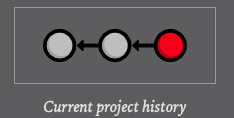
$ git log --oneline- output
453c8a4 Add navigation links
1047951 t Add blue an orange html files
6a442fc Create index page for the message- Condensing output to a single line is a great way to get a high-level overview of a repository
- Another useful configuration is to pass a filename to git log:
1047951 t Add blue an orange html files- This display only the blue.html history.
- Notice that the initial Create index page commit is missing, since blue.html didn't exist in that snapshot.
$ git initCreate a git repository in the current folder.
$ git statusView the status of each file in a repository.
$ git add fileNameStage a file for the next commit.
$ git commitCommit the staged files with a descriptive message.
$ git logView a repository's commit history.
$ git config --global user.name "<nameOfTheUser>"Define the author name to be used in all repositories.
$ git config --global user.email <email>Define the author email to be used in all repositories.