- 1. Display Commit Checksums
- 2. View an Old Version
- 3. View an Older Version
- 4. Return to current version
- 5. Tag a Release
- 6. Try a Crazy Experiment
- 7. Stage and Commit the Snapshot
- 8. View the Stable Commit
- 9. Undo Committed Changes (revert)
- 10. Start a Smaller Experiment
- 11. Undo Uncommitted Changes
- 12. Conclusion
- 13. Quick References
In the last module, we learned how to record versions of a project into a Git repositoru. The whole point of maintaining these "safe" copies is peace of mind: should our project suddenly break, we will know that we have easy access to a functional version, and we will be able to pinpoint precisely where the problem was introduced.
To this end, storing "safe" versions is not much help without the ability to restore them. Our next task is to learn how to view the previous states of a project, revert back to them, and reset uncommitted changes.
Quick review
$ git log --onelineoutput
453c8a4 Add navigation links
1047951 t Add blue an orange html files
6a442fc Create index page for the message
git only outputs the first seven characters of the checksum.
These first few characters effectively serve as a unique ID for each commit.
$ git checkout 1047951output
Note: switching to '1047951'.

You are in 'detached HEAD' state. You can look around, make experimental
changes and commit them, and you can discard any commits you make in this
state without impacting any branches by switching back to a branch.

If you want to create a new branch to retain commits you create, you may
do so (now or later) by using -c with the switch command. Example:

  git switch -c <new-branch-name>

Or undo this operation with:

  git switch -

Turn off this advice by setting config variable advice.detachedHead to false

HEAD is now at 1047951 t Add blue an orange html files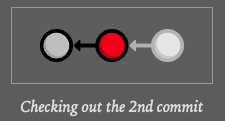
$ git checkout 6a442fcoutput
Previous HEAD position was 1047951 t Add blue an orange html files
HEAD is now at 6a442fc Create index page for the message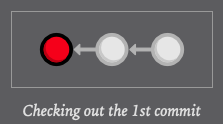
$ git checkout masteroutput
Previous HEAD position was 6a442fc Create index page for the message
Switched to branch 'master'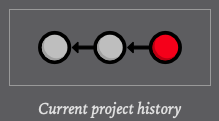
$ git tag -a v1.0 -m "Stable Version of the website"print all tags
$ git tag
v1.0create crazy.html
<!DOCTYPE html>
<html lang="en">
<head>
  <title>A Crazy Experiment</title>
  <meta charset="utf-8" />
</head>
<body>
  <h1>A Crazy Experiment</h1>
  <p>We're trying out a <span style="color: #F0F">crazy</span>
  <span style="color: #06C">experiment</span>!

  <p><a href="index.html">Return to home page</a></p>
</body>
</html>$ git add crazy.html commit
$ git commit -m "Add a crazzy experiment"
[master 12e24f0] Add a crazzy experiment
 1 file changed, 14 insertions(+)
 create mode 100644 crazy.html
status
commit 12e24f0c4e03b3c991b287230548d8bdad3882d7
Author: c4arl0s <c.santiago.cruz@gmail.com>
Date:   Fri May 22 20:34:06 2020 -0500

    Add a crazzy experiment

commit 453c8a4db079c3d235e3470754a79a22ea0f0afd
Author: c4arl0s <c.santiago.cruz@gmail.com>
Date:   Fri May 22 16:53:53 2020 -0500

    Add navigation links

commit 1047951bab2636a3bc90682e48d9fb32644da036
Author: c4arl0s <c.santiago.cruz@gmail.com>
Date:   Fri May 22 13:45:14 2020 -0500

    t Add blue an orange html files

commit 6a442fcc4ab51362713f09ed5eadc7af767db833
Author: c4arl0s <c.santiago.cruz@gmail.com>
Date:   Fri May 22 12:54:21 2020 -0500

    Create index page for the message
$ git checkout v1.0output
HEAD is now at 453c8a4 Add navigation linksgo back to master
$ git checkout masteroutput
Previous HEAD position was 453c8a4 Add navigation links
Switched to branch 'master'
* Undo Committed Changes (revert)
We are ready to restore our stable tag by removing the most recent commit. Make sure to change the 12e24f0 to the ID to the crazy experiment's commit before running the next command:
$ git revert 12e24f0This will show you the vim editor with the default message "Revert "Add a crazzy experiment" Save and close
$ git revert 12e24f0
Removing crazy.html
[master 3553479] Revert "Add a crazzy experiment"
 1 file changed, 14 deletions(-)
 delete mode 100644 crazy.html
git log
$ git log --onelineoutput
3553479 Revert "Add a crazzy experiment"
12e24f0 Add a crazzy experiment
453c8a4 Add navigation links
1047951 t Add blue an orange html files
6a442fc Create index page for the message- Notice that instead of deleting the "crazzy experiment" commit, Git figures out how to undo the changes it contains, the tacks on another commit with the resulting content.
- So, our fifth commit and our third commit represent the exact same snapshot, as shown below.
- Again, Git is designed to never lose history: the fourth snapshot is still accessible, just in case we want to continue developing it.
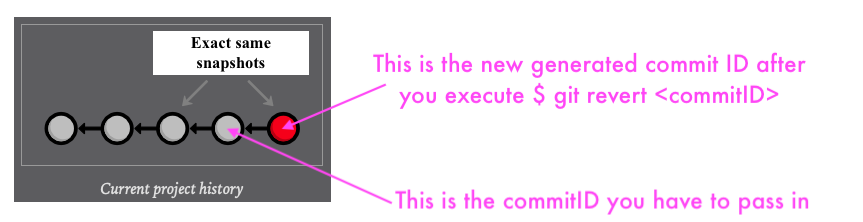
When using git revert, remember to specify the commit that you want to undo-- not the stable commit that you want to return to. It helps to think of this command as saying "undo this commit" rather than "restore this version"
Let's try a smaller experiment this time. Create dummy.html and leave it as a blank file. Then, add a link in the "Navigation Section" of index.html so that it resembles the following.
<h2>Navigation</h2>
<ul>
  <li style="color: #F90">
    <a href="orange.html">The Orange Page</a>
  </li>
  <li style="color: #00F">
	<a href="blue.html">The Blue Page</a>
 </li>
 <li>
  <a href="dummy.html">The Dummy Page</a>
  </li>
</ul>
In the next section, we are going to abandon this uncommitted experiment. But since the git revert command requires a commit ID to undo, we can't use the method discussed above.
Before we start undoing things, let's take a look at the status of our repository
$ git statusoutput
On branch master
Changes not staged for commit:
  (use "git add <file>..." to update what will be committed)
  (use "git restore <file>..." to discard changes in working directory)
	modified:   index.html

Untracked files:
  (use "git add <file>..." to include in what will be committed)
	dummy.html

no changes added to commit (use "git add" and/or "git commit -a")
We have a tracked file and an untracked file that need to be changed. First, we will take care of index.html
$ git reset --hardoutput
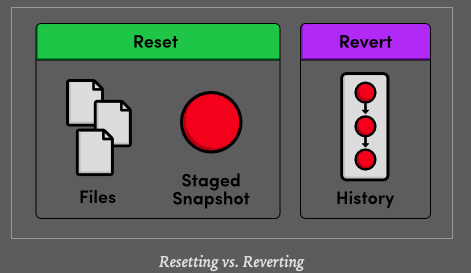
HEAD is now at 3553479 Revert "Add a crazzy experiment"instead of deleting the "crazzy experiment" This changes all tracked files to match the most recent commit. Note that the --hard flag is what actually updates the file.
Running git reset without any flags will simply unstage index.html, leaving its contents as is.
$ git status
On branch master
Untracked files:
  (use "git add <file>..." to include in what will be committed)
	dummy.html
In either case, git reset only operates on the working directory and the staging area, so our git log history remains unchanged.
- Next, let's remove the
dummy.htmlfile. - Of course, we could manually delete it, but using Git to reset changes eliminates human errors when working with several files in large teams. Run the following commands,
$ git clean -f
Removing dummy.html
This will remove all untracked files. With dummy.html gone, git status should now tell us that we have a "clean" working directory, meaning our project matches the most recent commit.
$ git status
On branch master
nothing to commit, working tree clean
Be careful with git reset and git clean. Both operate on the working directory, not on the committed snapshots. Unlike git revert, they permanently undo changes, so make sure you really want to trash what you are working on before you use them.
- It helps to think of this command as saying "undo this commit" rather than "restore this version".
- When using git revert, remember to specify the commit that you want to undo -- not the stable commit that you want to return to.
$ git checkout commitIDView a previous commit.
$ git tag -a tagName -m "description"Create an annotated tag pointing to the most recent commit.
$ git revert commitIDUndo the specified commit by applying a new commit.
$ git reset --hardReset tracked files to match the most recent commit.
$ git clean -fRemove untracked files.
$ git reset --hard / git clean -fPermanently undo uncommitted changes.