- 1. View existing Branches
- 2. Checkout the Crazy Experiment
- 3. Create a New Branch
- 4. Make a Rainbow
- 5. Stage and Commit the Rainbow
- 6. Rename the Rainbow
- 7. Return to the Master Branch
- 8. Create a CSS Branch
- 9. Add a CSS Stylesheet
- 10. Link the Stylesheet
- 11. Return to the Master Branch (again)
- 12. Merge the CSS Branch
- 13. Delete the CSS Branch
- 14. Conclusion
- 15. Quick Reference
Branches are the final component of Git version control. This gives us four core elements to work with throughout the rest of this tutorial:
- The working directory
- The staged Snapshot
- Committed Snapshots
- Development Branches
In Git, a branch is an independent line of development.
- First, Branches present an error-proof method for incorporating changes from an experiment.
- Second, they let you store all of your experiments in a single directory, which makes it much easier to keep track of them and to share them with others.
Branches also lend themselves to several standardized workflows for both individual and colaborative development, which will be explored in the latter half of the tutorial.
Lets start our exploration by listing the existing branches for our project:
$ git branch
* master
This will display our one and only branch: * master.
The master branch is Git's default branch, and the asterisk next to it tell us that it is currently checked out.
This means that the most recent snapshot in the master branch resides in the working directory.
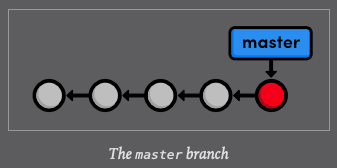
Notice that since there is only one working directory for each project, only one branch can be checked out at a time.
The previous module left out some details about ho to checking out previous commits actually works. We are now ready to tackle this topic in depth. First, we need the checksums of our committed snapshots.
$ git log --oneline
3553479 (HEAD -> master) Revert "Add a crazzy experiment"
12e24f0 Add a crazzy experiment
453c8a4 (tag: v1.0) Add navigation links
1047951 t Add blue an orange html files
6a442fc Create index page for the message
Check out the crazy experiment from the last module, remembering to change
$ git checkout 12e24f0This command returns a message that says we are in a detached HEAD state and that the HEAD is git's internal way of indicating the snapshot that is currently checked out.
HEAD detached at 12e24f0
nothing to commit, working tree clean
This means the red circle in each of our history diagrams actually represents Git's HEAD. The following figure shows the state of our repository before and after we checked out and old commit.
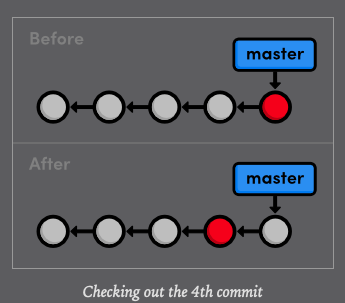
As shown in the "before" diagram, the HEAD normally resides on the tip of a development branch, But when we checked out the previous commit, the HEAD moved to the middle of the branch. We can no longer say we are on the master branch since it contains more recent snapshots than the HEAD. This is reflected in the git branch output, which tells us that we are currently on (no branch)
$ git branch
* (HEAD detached at 12e24f0)
masterWe can not add new commits when we are not on a branch, so let's create one now. This will take our current working directory and fork it into a new branch.
$ git branch crazyPrint all branches
$ git branch
* (HEAD detached at 12e24f0)
  crazy
  master
Note that git branch is a versatile command that can be used to either list branches or create them. However, the above command only creates the crazy branch -It does not check it out.
$ git checkout crazy
Switched to branch 'crazy'
We are now free to experiment in the working directory without disturbing anything in the master branch. The crazy branch is a completely isolated development environment that can be visualized as the following:
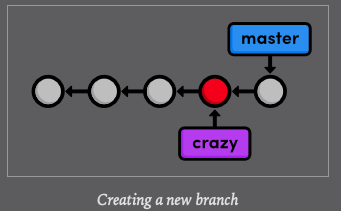
Right now, the crazy branch, HEAD, and working directory are the exact same as the fourth commit. But as soon as we add another snapshot, we will see a fork in our project history.
We will continue developing our crazy experiment by changing crazy.html to the following.
<!DOCTYPE html>
<html lang="en">
<head>
  <title>A Crazy Experiment</title>
  <meta charset="utf-8" />
</head>
<body>
  <h1>A Crazy Experiment</h1>
	<p>Look! A Rainbow!</p>

<ul>
    <li style="color: red">Red</li>
    <li style="color: orange">Orange</li>
    <li style="color: yellow">Yellow</li>
    <li style="color: green">Green</li>
    <li style="color: blue">Blue</li>
    <li style="color: indigo">Indigo</li>
    <li style="color: violet">Violet</li>
</ul>
  <p><a href="index.html">Return to home page</a></p>
</body>
</html>Hopefully, you are relatively familiar with staging and committing snapshots by now:
$ git add crazy.html$ git status
On branch crazy
Changes to be committed:
(use "git restore --staged <file>..." to unstage)
modified: crazy.html$ git commit -m "add a rainbow to crazy.html"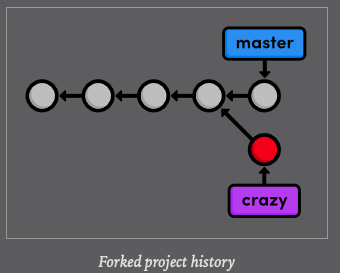
Also notice that the HEAD (designated by the red circle) automatically moved forward to the new commit, which is intuitively what we would expect when developing a project. The above diagram represents the complete state of our repository, but git log only displays the history of the current branch:
$ git log
commit e1bc77119319d8b38ff46dbddd968f669cc37a4c
Author: c4arl0s <c.santiago.cruz@gmail.com>
Date:   Sat May 23 09:01:08 2020 -0500

    add a rainbow to crazy.html

commit 12e24f0c4e03b3c991b287230548d8bdad3882d7
Author: c4arl0s <c.santiago.cruz@gmail.com>
Date:   Fri May 22 20:34:06 2020 -0500

    Add a crazzy experiment

commit 453c8a4db079c3d235e3470754a79a22ea0f0afd
Author: c4arl0s <c.santiago.cruz@gmail.com>
Date:   Fri May 22 16:53:53 2020 -0500

    Add navigation links

commit 1047951bab2636a3bc90682e48d9fb32644da036
Author: c4arl0s <c.santiago.cruz@gmail.com>
Date:   Fri May 22 13:45:14 2020 -0500

    t Add blue an orange html files

commit 6a442fcc4ab51362713f09ed5eadc7af767db833
Author: c4arl0s <c.santiago.cruz@gmail.com>
Date:   Fri May 22 12:54:21 2020 -0500

    Create index page for the message
Note that the history before the fork is considered part of the new branch (marked with asterisks above). That is to say, the crazy history spans all the way back to the first commit.
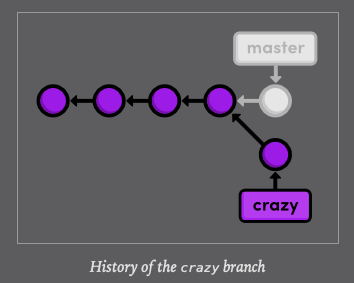
The project as a whole now has a complex history, however, each individual branch still has a linear history (snapshots occur one after another). This means that we can interact with branches in the exact same way as we learned in the first two modules.
Let's add one more snapshot to the crazy branch. Rename crazy.html to rainbow.html.:
$ mv crazy.html rainbow.htmlThen use the following Git commands to update the repository
$ git status
On branch crazy
Changes not staged for commit:
  (use "git add/rm <file>..." to update what will be committed)
  (use "git restore <file>..." to discard changes in working directory)
	deleted:    crazy.html

Untracked files:
  (use "git add <file>..." to include in what will be committed)
	rainbow.html

no changes added to commit (use "git add" and/or "git commit -a")
$ git rm crazy.html
rm 'crazy.html'The git rm command tells Git to stop tacking crazy.html (and delete it if necessary), and git add starts tracking rainbow.html.
$ git add rainbow.html$ git status
On branch crazy
Changes to be committed:
(use "git restore --staged <file>..." to unstage)
renamed: crazy.html -> rainbow.htmlThe renamed: crazy.html -> rainbow.html message in the final status output show us that Git is smart enough to figure out when we are renaming a file.
Our snapshot is staged and ready to be commited:
$ git commit -m "Rename craz.html to rainbow.html"
crazy 95a36a7] Rename crazy.html to rainbow.html
 1 file changed, 0 insertions(+), 0 deletions(-)
 rename crazy.html => rainbow.html (100%)
$ git log --oneline
95a36a7 (HEAD -> crazy) Rename crazy.html to rainbow.html
e1bc771 add a rainbow to crazy.html
12e24f0 Add a crazzy experiment
453c8a4 (tag: v1.0) Add navigation links
1047951 t Add blue an orange html files
6a442fc Create index page for the messageAfter this addition, our complete repository history looks like the following
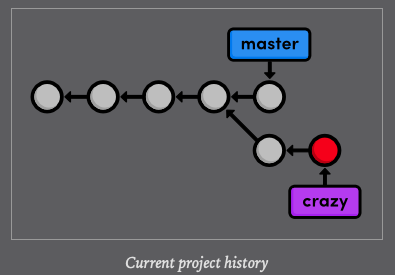
Remember that the crazy branch does not include any commits in master after the fork.
Lets switch back to the master branch:
$ git checkout master
$ git branch
$ git log --oneline
3553479 (HEAD -> master) Revert "Add a crazzy experiment"
12e24f0 Add a crazzy experiment
453c8a4 (tag: v1.0) Add navigation links
1047951 t Add blue an orange html files
6a442fc Create index page for the messageAfter the checkout, crazy.html does not exist in the working directory, and the commits from the last few steps don't appear in the history. These two branches became completely independent development environment after they forked. You can think of them as separate project folders that you switch between with git checkout. They do, however, share their first four commits.
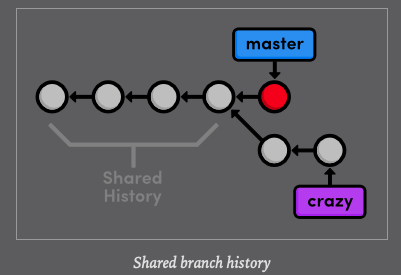
We are going to put our crazy experiment on the backburner for now and turn our attention to formatting the HTML pages with a cascading stylesheet (CSS). Again, if you are not comfortable with HTML and CSS, the content of the upcoming files is not nearly as important as the Git commands used to manage them.
Let's create and check out a new branch called css.
$ git branch cssSwitch to css branch
$ git checkout css
Switched to branch 'css'The new branch points to the currently checked out snapshot, which happens to coincide with the master branch.
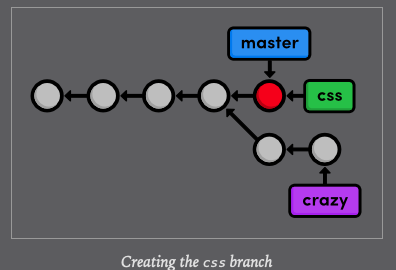
Next, create a file called style.css with the following content. This CSS is used to apply formatting to the HTML in our other files.
body {
padding: 20px;
font-family: Verdana, Arial, Helvetica, sans-serif;
font-size: 14px;
color: #111;
}
p, ul {
margin-bottom: 10px;
}
ul {
margin-left: 20px;
}Commit the stylesheet in the usual fashion
$ git add style.css
$ git status
$ git commit -m "Add CSS stylesheet"We still need to tell the HTML pages to use the formatting in style.css. Add the following text on a separate line after the title element in index.html, blue.html and orange.html (remember that rainbow.html only exist in the crazy branch). You should be able to see the CSS formatting by opening index.html in a web browser.
<link rel="stylesheet" href="style.css" />Commit the changes
$ git add index.html blue.html orange.html $ git status
On branch css
Changes to be committed:
(use "git restore --staged <file>..." to unstage)
modified: blue.html
modified: index.html
modified: orange.html
$ git commit -m "link HTML pages to stylesheet"
[css 1a27d0e] link HTML pages to stylesheet
3 files changed, 3 insertions(+)$ git log --oneline
1a27d0e (HEAD -> css) link HTML pages to stylesheet
019e981 Add CSS stylesheet
3553479 (master) Revert "Add a crazzy experiment"
12e24f0 Add a crazzy experiment
453c8a4 (tag: v1.0) Add navigation links
1047951 t Add blue an orange html files
6a442fc Create index page for the messageThis results in a repository history looks like:
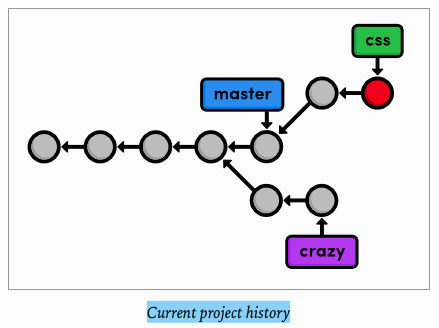
The css branch let us create and test our formatting without threatening the stability of the master branch. But, new we need to merge these changes into the main project. Before we attempt the merge, we need to return to the master branch.
$ git checkout master
Switched to branch 'master'Verify that style.css does not exist and that HTML pages are not linked to it. Our repository history remains unchanged, but the working directory now matches the snapshot pointer to by the master branch.
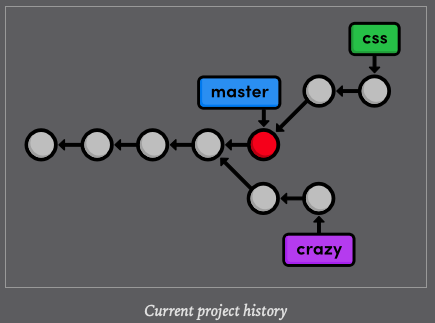
Take a look at the git log --oneline output as well.
$ git log --oneline
3553479 (HEAD -> master) Revert "Add a crazzy experiment"
12e24f0 Add a crazzy experiment
453c8a4 (tag: v1.0) Add navigation links
1047951 t Add blue an orange html files
6a442fc Create index page for the messageAs expected, there is no mention of the CSS addition in the history of master, but we are about to change that.
Use the git merge command to take the snapshots from the css branch and add them to the master branch.
$ git merge cssNotice that this command always merges into the current branch: css remains unchanged. Check the history to make sure that the css history has been added to master.
$ git log --oneline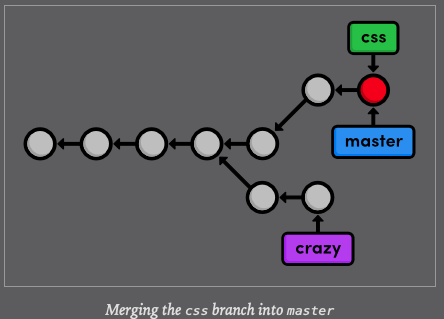
Instead of re-creating the commits in css and adding them to the history of master, Git reuses the existing snapshots and simply moves the tip of master to match the tip of css. This kind of merge is called a fast-forward merge, since Git is "fast-forwarding" through the new commits in the css branch.
After the merge, both branches have the exact same history, which makes them redundant. Unless we wanted to keep developing on the css branch, we are free to get rid of it.
We can safely delete a branch by passing the -d flag to git branch.
$ git branch -d css
Deleted branch css (was 1a27d0e).
Since css and master represent the same branch, our history looks the same, though the css branch has been removed. I have also put the master branch's commits in a straight line in the following visualization, making it easier to track during the upcoming modules.
$ git branch
  crazy
* master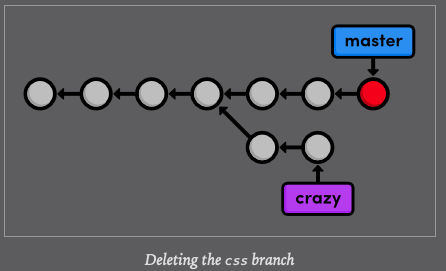
Deleting branches is a relatively "safe" operation in the sense that Git will warn you if you are deleting a unmerged branch. This is just another example of Git's commitment to never losing your work.
This module used two branches to experiment with new additions. In both cases, branches gave us an environment that was completely isolated from the "Stable" version of our website (the master branch). One of our experiments is waiting for us in the next module, while our CSS changes have been merged into the stable project, and its branch is thus obsolete. Using branches to develop small features like these is one of the hall-marks of Git-based software management.
While this module relied heavily on branch diagrams to show the complete state of the repository, you don't need to keep this high-level overview in mind during your every day development. Creating a new branch is really just a way to request an independent working directory, staging snapshot, and history. You can think of branches as a way to multiply functionality presented in the first two module.
Next, we will practice our branch management skills by examining the typical workflow of veteran Git users. We will also discover more complicated merges than the fast-forward merge introduced above.
$ git branchList all branches.
$ git branch <branchName>Create a new branch using the current working directory as its base.
$ git checkout <branchName>Make the working directory and the HEAD match the specified branch.
$ git merge <branchName>Merge a branch into the checked-out branch.
$ git branch -d <branchName>Delete branchName
$ git rm <fileName>Remove a file from the working directory (if applicable) and stop tracking the file.
$ git rm -r <directoryName>Remove a directory from the working directory and content. Stop tracking the directory and files.
$ git push origin --delete <remote-branch-to-remove>This flag allows you to delete a remote branch. (--delete)