- 1. Clone the Repository (Mary)
- 2. Configure The Repository (Mary)
- 3. Start Mary's Day (Mary)
- 4. Create Mary's Bio Page
- 5. Publish the Bio Page (Mary)
- 6. View Remote Repositories (Mary)
- 7. Return to Your Repository (you)
- 8. Add Mary as a Remote (you)
- 9. Fetch Mary's Branches (you)
- 10. Check out a Remote Branch
- 11. Find Mary's Changes
- 12. Merge Mary's Changes
- 13. Push a Dummy Branch
- 14. Push a New Tag
- 15. Conclusion
- 16. Quick Reference
- 17. Use an old repositoty to push the current branch to another repository in Github
Simply put, a remote repository is one that is not your own. It can be another Git repository that is on your company's network, the internet, or even your local file system, but the point is that it is a repository distinct from your my-git-repository project.
We have already seen how branches can streamline a workflow within a single repository, but they also happen to be Git's mechanism for sharing commits between repositories. Remote Branches act just like the local branches that we have been using, only the represent a branch in someone else's repository.
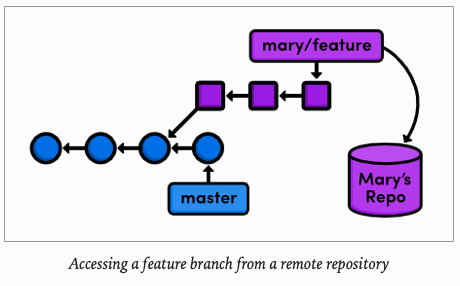
This means we can adapt our merging and rebasing skills to make Git fantastic collaboration tool. Over the next few modules, we will be exploring various multi-user workflows by pretending to be different developers working on our example website.
For several parts of this module, we are going to pretend to be Mary, the graphic designer for our website. Mary's actions are clearly denoted by including her name in the heading of each step.
First, Mary needs her own copy of the repository to work with. The Distributed Workflows module will discuss network-based remotes, but right now we are just going to store them on the local filesystem.
cd /Users/carlossantiagocruz/iOS/RysGitTutorialRepositorycd ..Before we continue, I have to go back to fix the following command to pass the --local flag to do the correct cloning.
$ git clone --local RysGitTutorialRepository/ RysGitTutorialMarysRepository
Cloning into 'RysGitTutorialMarysRepository'...
done.
$ cd RysGitTutorialMarysRepository/
Wed Jun 03 ~/iOS/RysGitTutorialMarysRepository
$ ls
about green.html news-1.html orange.html red.html yellow.html
blue.html index.html news-2.html rainbow.html style.cssThe first two lines navigate the command shell to the directory above RysGitTutorialMarysRepository. Make sure to change to the actual path to your repository. The git clone command copies our repository into RysGitTutorialMarysRepository, which will reside in the same directory as my git repository. Then, we navigate to the Mary's repository so we can start pretending to be Mary.
First show all directories involved
$ ls RysGitTutorial*
RysGitTutorialRepository:
blue.html    orange.html  style.css    news-1.html  rainbow.html news-2.html  about        green.html   index.html   red.html     yellow.html

RysGitTutorial:
LICENSE   README.md

RysGitTutorialMarysRepository:
about        blue.html    green.html   index.html   news-1.html  news-2.html  orange.html  rainbow.html red.html     style.css    yellow.html
Run git log verify that Mary's repository is in fact a copy of our original repository.
$ git log --oneline
d417237 (HEAD -> master, origin/master, origin/HEAD) Add green page
1b2f067 Add yellow page
cb8d72b Add red page
20b9d5d Add link to about section in home page
71153c2 Begin creating bio pages (added message to mary)
f4bb8c3 Create the about page
74afd90 Add article for 2nd news item
5142364 Add 2nd news item to index page
f79223d Merge branch 'crazy'
ebb4171 Add news item for rainbow
049c9d9 Add 1st news item
4310454 Link index.html to rainbow.html
6a43f42 add CSS stylesheet to rainbow.html
b9f2b14 Merge branch 'master' into crazy
1a27d0e link HTML pages to stylesheet
019e981 Add CSS stylesheet
95a36a7 Rename crazy.html to rainbow.html
e1bc771 add a rainbow to crazy.html
3553479 Revert "Add a crazzy experiment"
12e24f0 Add a crazzy experiment
453c8a4 (tag: v1.0) Add navigation links
1047951 t Add blue an orange html files
6a442fc Create index page for the messageFirst off, Mary needs to configure her repository so that we know who contributed what to the project.
$ git config user.name "Mary"$ git config user.mail mary.example@icloud.comYou may recall from the first module that we used a --global flag to set the configuration for the entire Git installation. But since Mary's repository is on the local filesystem, she needs a local configuration.
$ ls .git
info        hooks       packed-refs HEAD        index
description objects     refs        logs        config
$ cat .git/config
[core]
repositoryformatversion = 0
filemode = true
bare = false
logallrefupdates = true
ignorecase = true
precomposeunicode = true
[remote "origin"]
url = /Users/carlossantiagocruz/iOS/RysGitTutorialRepository/
fetch = +refs/heads/*:refs/remotes/origin/*
[branch "master"]
remote = origin
merge = refs/heads/master
[user]
name = Mary
mail = mary.example@icloud.comUse a text editor to open up the file called config in the .git directory of Mary's project (you may need to enable hidden files to see .git). This is where local configurations are stored, and we see Mary's information at the bottom of the file. Note that this overrides the global configuration that we set in The basics.
Today, Mary is going to be working on her bio page, which she should develop in a separate branch:
git checkout -b bio-pageMary can create and check out branches just like we did in our copy of the project. Her repository is a completely isolated development enviroment, and she can do whatever she wants in her without worrying about what's going on in my git repository. Just as branches are an abstraction for the working directory, the staged snapshot, and a commit history, a repository is an abstraction for branches.
Let's complete Mary's biography page. In mary's repository, change about/mary.html to:
<html lang="en">
<head>
  <title>About Mary</title>
  <link rel="stylesheet" href="../style.css" />
  <meta charset="utf-8" />
</head>
<body>
  <h1>About Mary</h1>
  <p>I'm a graphic designer.</p>

  <h2>Interests</h2>
  <ul>
    <li>Oil Painting</li>
    <li>Web Design</li>
  </ul>

  <p><a href="index.html">Return to about page</a></p>
</body>
</html>
Again, we are developing this in a branch as a best-practice step: our master branch is only for stable, tested code. Stage and commit the snapshot, then take a look at the result.
$ git commit -a -m "Add bio page for mary"
[bio-pages 0d746d0] Add bio page for mary
 1 file changed, 21 insertions(+), 1 deletion(-)
Author: Mary <c.santiago.cruz@gmail.com>
Date: Fri Jun 5 11:09:51 2020 -0500
Add bio page for maryThe Author field in the log output should reflect the local configurations we made for Mary's name and email. Remember that -n -1 flags limits history output to a single commit.
$ git log -n 1
commit 0d746d0a6eb7b983e661e47f9347b196b2967a0d (HEAD -> bio-pages)
Author: Mary <c.santiago.cruz@gmail.com>
Date:   Fri Jun 5 11:09:51 2020 -0500

Add bio page for maryCheck why the email was not changed
Now, we can publish the bio page by merging into the master branch:
$ git checkout master
Switched to branch 'master'
Your branch is up to date with 'origin/master'.
Then try to merge
Oh Crap !!!
merge: bio-page - not something we can mergeI suppose the repository was not created correctly, reading more documentation it suggest to pass the --local flag when you cloning.
So do it again, and configure.
$ git clone --local RysGitTutorialRepository/ RysGitTutorialMarysRepositoryThen configure:
$ git config user.name "Mary"$ git config user.mail mary@repository.comThen merge again
$ git merge bio-page
Updating d417237..49baa6e
Fast-forward
 about/mary.html | 21 ++++++++++++++++++++-
 1 file changed, 20 insertions(+), 1 deletion(-)
Woala ! Now it works !!!
Of course, this results in a fast-forward merge.
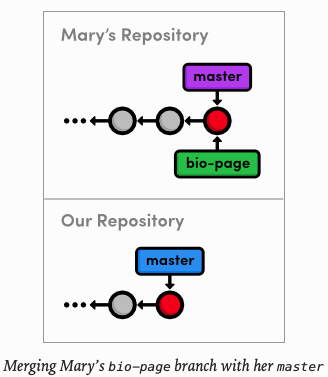
Notice that both repositories have normal, local branches - we have not had any interaction between the two repositories, so we don't see any remote branches yet. Before we switch back to my git repository, let's examine Mary's remote connections.
Mary can list the connections she has to other repositories using the following command.
Fri Jun 05 ~/iOS/RysGitTutorialMarysRepository
$ git remote
origin
Apparently, she has a remote called origin. When you clone a repository, Git automatically adds an origin. When you clone a repository, Git automatically adds an origin remote pointing to the original repository, under the assumption that you will probably want to interact with it down to the road. We can request a little bit more information with -v (verbose) flag:
Fri Jun 05 ~/iOS/RysGitTutorialMarysRepository
$ git remote -v
origin	/Users/carlossantiagocruz/iOS/RysGitTutorialRepository/ (fetch)
origin	/Users/carlossantiagocruz/iOS/RysGitTutorialRepository/ (push)
This shows the full path to our original repository, verifying that origin is a remote connection to my git repository.
The same path is designated as a "fetch" and a "push" location. We will see what these means in a moment.
OK, we are done being Mary, and we can return to our own repository:
$ cd ../RysGitTutorialRepository/Notice that Mar's bio page is still empty. It is very important to understand that this repository and Mary's repository are completely separate. While she was altering her bio page, we could have been doing all sorts of other things in my git repository. We could have even changed her bio page, which would result in a merge conflict when we try to pull her changes in.
Before we can get ahold of Mar's bio page, we need access to her repository. Let's look at our current list of remotes:
$ git remoteWe don't have any (origin was never created because we didn't clone from anywhere). So, let's add Mary as a remote repository
$ git remote add mary ../RysGitTutorialMarysRepository/Fri Jun 05 ~/iOS/RysGitTutorialRepository
$ git remote -v
mary ../RysGitTutorialMarysRepository/ (fetch)
mary ../RysGitTutorialMarysRepository/ (push)We can now use mary to refer to Mar's repository, which is located at ../RysGitTutorialMarysRepository. The git remote add command is used to bookmark another Git repository for easy access, and our connections can be seen in the figure below.
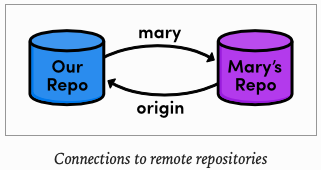
Now that our remote repositories are setup, we will spend the rest of the module discussing remote branches.
As noted earlier, we can use remote branches to access snapshots from another repository. Let's take a look at our current remote branches with the -r flag.
$ git branch -rAgain, we don't have any. To populate our remote branch listing, we need to fetch the branches from Mary's repository:
$ git fetch mary
remote: Enumerating objects: 7, done.
remote: Counting objects: 100% (7/7), done.
remote: Compressing objects: 100% (4/4), done.
remote: Total 4 (delta 1), reused 0 (delta 0)
Unpacking objects: 100% (4/4), 604 bytes | 100.00 KiB/s, done.
From ../RysGitTutorialMarysRepository
 * [new branch]      bio-page   -> mary/bio-page
 * [new branch]      master     -> mary/master
Fri Jun 05 ~/iOS/RysGitTutorialRepository
$ git branch -r
  mary/bio-page
mary/masterThis will go to the "fetch" location shown in git remote -v and download all of the branches it finds there into our repository. The resulting branches are shown below.
mary/bio-page
mary/masterRemote branches are always listed in the form remoteName/branchName so that they will never be mistaken for local branches. The above listing reflects the sate of Mar's repository at the time of the fetch, but they will not be automatically updated if Mary continues developing any of her branches.
That is to say, our remote branches are not direct links into Mary's repository -they are read-only copies of her branches, stored in our own repository. This means that we would have to do another fetch to access new updates.
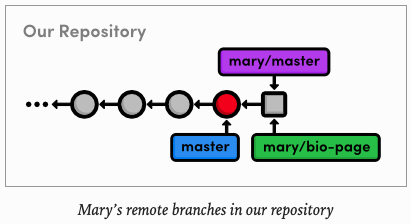
The above figure shows the state of our repository. We have access to Mary's snapshot (represented by sqeares) and her branches, even though we don't have a real-time connection to Mary's repository.
Let's check out a remote branch to review Mary's changes.
Fri Jun 05 ~/iOS/RysGitTutorialRepository
$ git checkout mary/master
Note: switching to 'mary/master'.

You are in 'detached HEAD' state. You can look around, make experimental
changes and commit them, and you can discard any commits you make in this
state without impacting any branches by switching back to a branch.

If you want to create a new branch to retain commits you create, you may
do so (now or later) by using -c with the switch command. Example:

  git switch -c <new-branch-name>

Or undo this operation with:

  git switch -

Turn off this advice by setting config variable advice.detachedHead to false

HEAD is now at 49baa6e Add bio page for Mary
This puts us in a detached HEAD state, just like we were in when we checked out a dangling commit. This should not be that surprising, considering that our remote branches are copies of Mary's branches. Checking out a remote branch takes our HEAD off the tip of a local branch, illustrated by the following diagram.
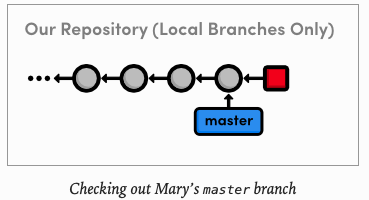
We can't continue developing if we are not on a local branch. To build on mary/master we either need to merge it into our own local master or create another branch. We did the latter in Branches, Part I to build on an old commit and in the previous module to revive a "lost commit, but right now we are just looking at what Mary did, so the detached HEAD state does not really affect us.
We can use the same log-filtering syntax from the previous module to view Mary's changes:
Fri Jun 05 ~/iOS/RysGitTutorialRepository
$ git log master..mary/master --stat
commit 49baa6e81a7ad87714540ec9ce9fceaaa12409c1 (HEAD, mary/master, mary/bio-page)
Author: Mary <c.santiago.cruz@gmail.com>
Date:   Fri Jun 5 11:34:45 2020 -0500

    Add bio page for Mary

 about/mary.html | 21 ++++++++++++++++++++-
 1 file changed, 20 insertions(+), 1 deletion(-)
This shows us what Mary has added to her master branch, but it is also a good idea to see if we have added any new changes that are not in Mary's repository
Fri Jun 05 ~/iOS/RysGitTutorialRepository
$ git log mary/master..master --stat
Fri Jun 05 ~/iOS/RysGitTutorialRepository
$
This will not output anything, since we haven't altered our data-base since Mary cloned it, In other words, our history hasn't diverged - we are just behind by a commit.
Let's approve Mary's changes and integrate them into our own master branch.
Sat Jun 06 ~/iOS/RysGitTutorialRepository
$ git merge mary/master
Updating d417237..49baa6e
Fast-forward
 about/mary.html | 21 ++++++++++++++++++++-
 1 file changed, 20 insertions(+), 1 deletion(-)
Sat Jun 06 ~/iOS/RysGitTutorialRepository
Even though mary/master is a remote branch, this still results in a fast-forward merge because there is a linear path from our master to the tip of mary/master
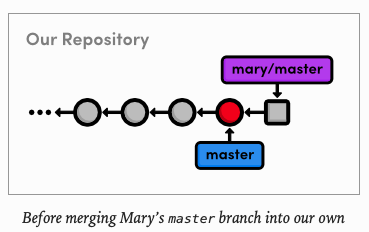
After the merge, the snapshots from Mary's remote branch become a part of a our local master branch. As a result, our master is now synchronized with Mary's:
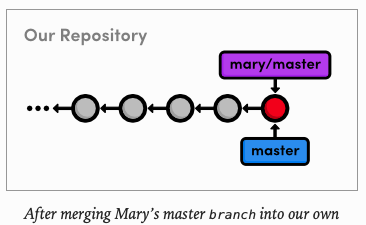
Notice that we only interacted with Mary's master branch, even though we had access to her bio-page. If we hadn't been pretending to be Mary, we wouldn't have known what this feature branch was for it or if it was ready to be merged. But, since we've designated master as a stable branch for the project, it was safe to integrate those updates (assuming Mary was also aware of this convention).
To complement our git fetch command, we will take a brief look at pushing. Fetching and pushing are almost opposites, in that fetching imports branches, while pushing exports branches to another repository. Let's take a look:
$ git branch dummyThis creates a new branch called dummy.
$ git push mary dummy
Total 0 (delta 0), reused 0 (delta 0)
To ../RysGitTutorialMarysRepository/
 * [new branch]      dummy -> dummy
This sends it to Mary. Switch into Mary's repository to see what we did:
Mon Jun 08 ~/iOS/RysGitTutorialRepository
$ cd ../RysGitTutorialMarysRepository/
$ git branch
bio-page
dummy
* masterYou should find a new dummy branch in her local branch listing. I said that git fetch and git push are almost opposites because pushing creates a new local branch, while fetching imports commits into remote branches.
Now put yourself in Mary's shoes. She was a developing in her own repository when, all of a sudden, a new dummy branch appeared out of nowhere. Obviously, pushing branches into other people's repositories can make for a chaotic workflow. So, as a general rule, you should never push into another developer's repository. But then, why does git push even exist?
Over the next few modules, we will see that pushing is a necessary tool for maintaining public repositories. Until then, just remember to never, ever push into one of your friends's repositories. Let's get rid of these dummy branches and return to our repository.
$ git branch -d dummy
Deleted branch dummy (was 49baa6e).
Go back to your repository
Mon Jun 08 ~/iOS/RysGitTutorialMarysRepository
$ cd ../RysGitTutorialRepository/
the delete the branch
$ git branch -d dummy
Deleted branch dummy (was 49baa6e).An important property of git push is that it does not automatically push tag associated with a particular branch. Let's examine this by creating a new tag.
Wed Jun 10 ~/iOS/RysGitTutorialRepository
$ git tag -a v2.0 -m "An even stabler version of the website"
We now have a v2.0 tag in my git repository, which we can see by running the git tag command. Now, let's try pushing the branch to Mary's repository.
$ git push mary master
Everything up-to-date
Git will say her master branch is already up-to-date, and her repository will remain unchanged. Instead of pushing the branch that contains the tag. Git requires us to manually push the tag itself:
$ git push mary v2.0
Enumerating objects: 1, done.
Counting objects: 100% (1/1), done.
Writing objects: 100% (1/1), 180 bytes | 180.00 KiB/s, done.
Total 1 (delta 0), reused 0 (delta 0)
To ../RysGitTutorialMarysRepository/
 * [new tag]         v2.0 -> v2.0
You should now be able to see the v2.0 tag in Mary's repository with a quick git tag. It is very easy to forget to push new tags, so if it seems like your project has lost a tag or two, it is most likely because you didn't to push them to the remote repository.
Wed Jun 10 ~/iOS/RysGitTutorialRepository
$ cd ../RysGitTutorialMarysRepository/
Wed Jun 10 ~/iOS/RysGitTutorialMarysRepository
$ git tag
v1.0
v2.0In this module, we learned how remote branches can be used to access content in someone else's repository. The remotes listed in git remote are merely bookmarks for a full path to another repository. We used a local path, but as we will soon see, Git can use the SSH protocol to access repositories on another computer.
The convention of master as a stable branch allowed us to pull changes without consulting Mary, but this doesn't necessarily have to be the case. When implementing your own workflow, Gif offers you a lot of flexibility about when and where you should pull from your team members. As long as you clearly define your project conventions, you can designate a special uses or privileges to any branch.
That said, it is important to note that remotes are for people, whereas branches are for topics. Do not create separate branches for each of your developers -give them separate repositories and bookmark them with git remote add. Branches should always be for project development, not user management.
Now that we know how Git shares information between repositories, we can add some more structure to our multi-user development environment. The next module will show you how to set up and access a shared central repository.
$ git clone <remotePath>Create a copy of a remote Git repository
$ git remoteList remote repositories.
$ git remote add <remoteName> <remotePath>Add a remote repository
$ git fetch <remoteName>Download remote branch information, but do not merge anything
$ git merge <remoteName>/<branchName>Merge a remote branch into the checked-out branch
$ git branch -rList remote branches
$ git push <remoteName> <branchName>Push a local branch to another repository
$ git branch -rList remote branches.
$ git push <remoteName> <branchName>Push a local branch to another repository
$ git push <remoteName> <tagName>Push a tag to another repository
- Create a repository on github, name: RepositoryOnGithub
- Navigate to the original repository you want to use
$ cd /path/to/original/repository- Push the master or main branch, force to delete the trash you create after creating it.
$ git push -f https://github.com/c4arl0s/RepositoryOnGithub.git master:main- Clone RepositoryOnGithub repository. It will contain all the files and history of the original repository.
$ git clone https://github.com/c4arl0s/RepositoryOnGithub.git