A simple timer that runs in the terminal. Made with time boxing in mind, but can be used for anything. With sound capabilities, we can import a custom starting and ending sound of our choice to go off along side the timer.



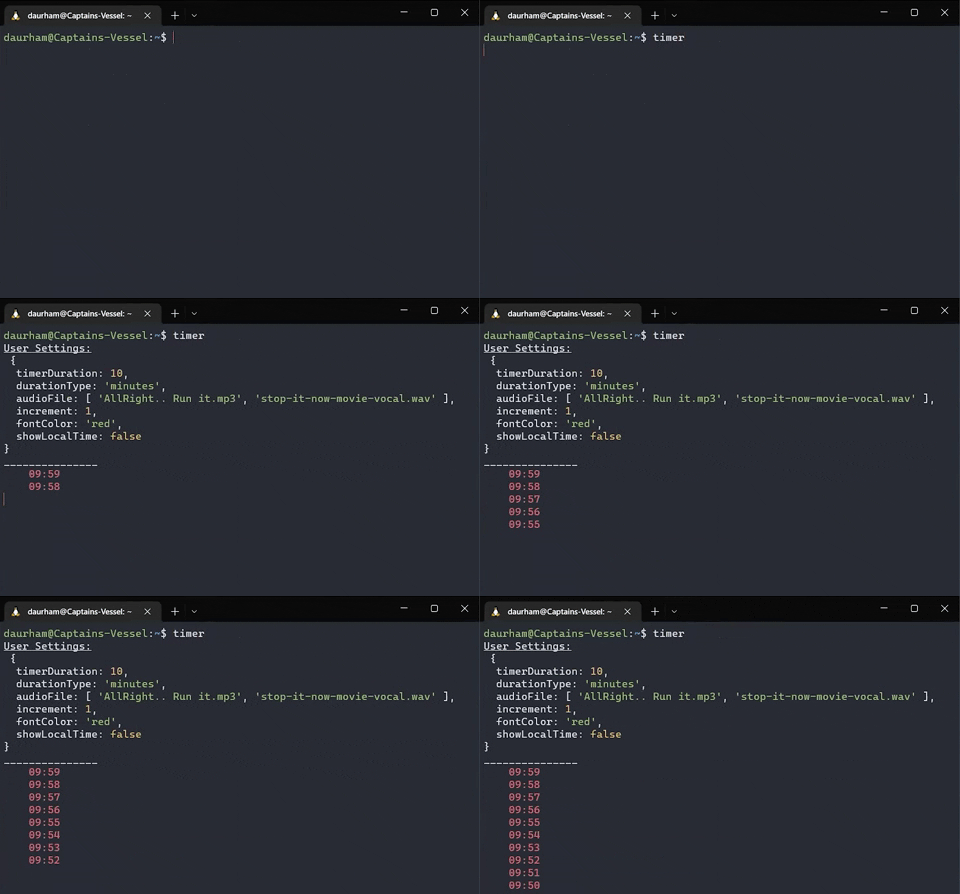
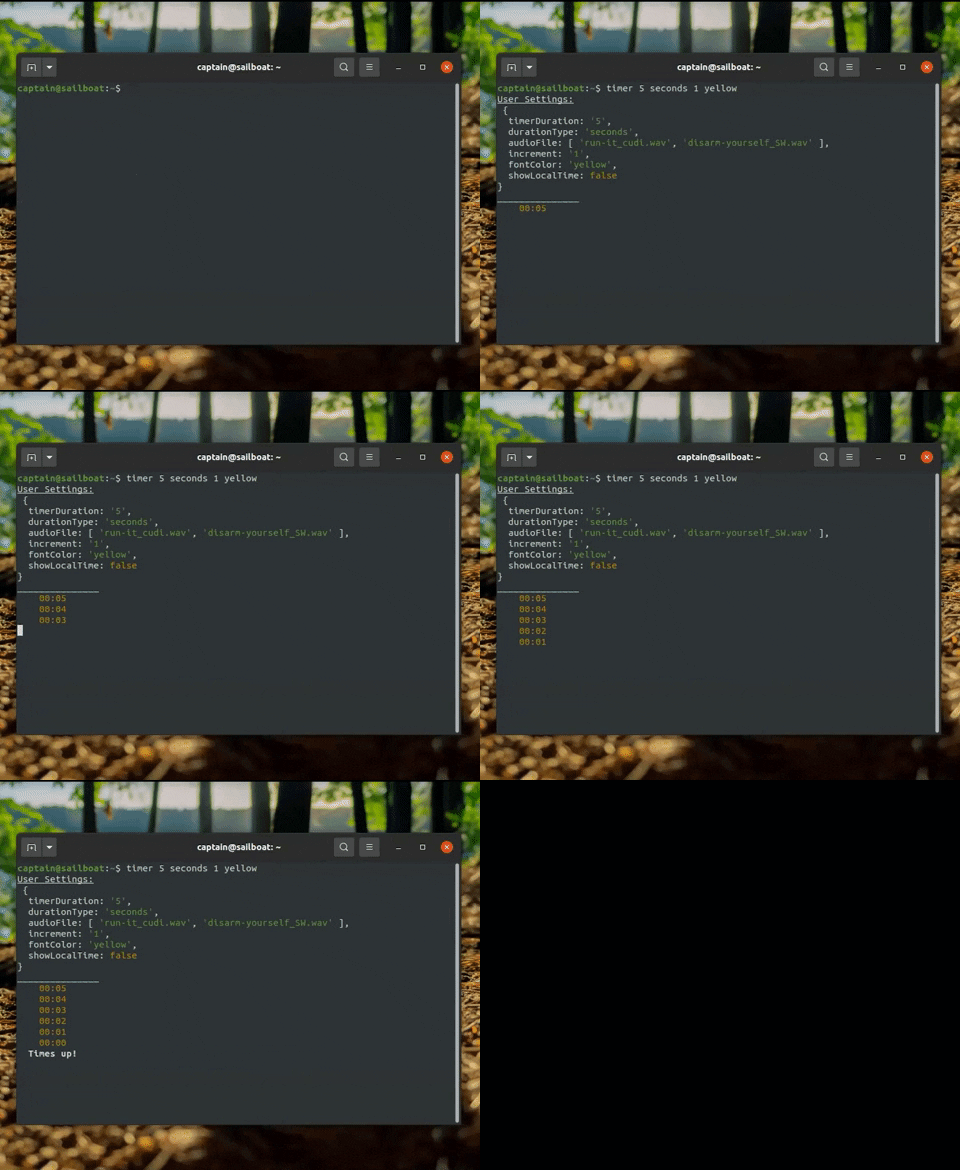
- Clone this repo
- Open Terminal_Timer.js and fill out the USER_SETTINGS (optional)
- Install dependencies:
npm install
- Start timer:
npm start
- Get to work!!
Get the best use out of it, use easily in terminal wherever
- Clone repo to your command lines initial directory
- Install dependencies
npm install
- Open a fresh terminal
- Run:
node timer_scripts/Terminal_Timer.js 10 minutes
syntax: node [path/to/repo?/]timer_scripts/Terminal_Timer.js [timeDuration?] [timeType?] [timeIncrement?] [fontColor?] [showLocalTime?]
- Clone repo wherever you want
- Install dependencies
npm install
- Create an alias at the bottom of your bash startup script (.bashrc or .bash_profile) that:
- a). resets the current directory
- (cd;)
- b). travels to the repo's root directory and
- (cd path/to/repo;)
- c). uses node to run the script from root
- (node backend_scripts/Terminal_Timer.js)
- a). resets the current directory
alias timer='cd; cd Desktop/Applications/Timer; node timer_scripts/Terminal_Timer.js'alias aliasName='[go to initial terminal dir; go to repo dir root; use node to run backend_scripts/Terminal_Timer.js]'
- Launch a fresh terminal
- Run a similar syntax:
timer 1 hr
timer 30 sec 2
timer 10
timer 5 m 1 green true
syntax: aliasName [timeDuration?] [timeType?] [timeIncrement?] [fontColor?] [showLocalTime?]
Running the "aliasName" defaults to:
aliasName 10 minutes 1 red false
- Get to work!!
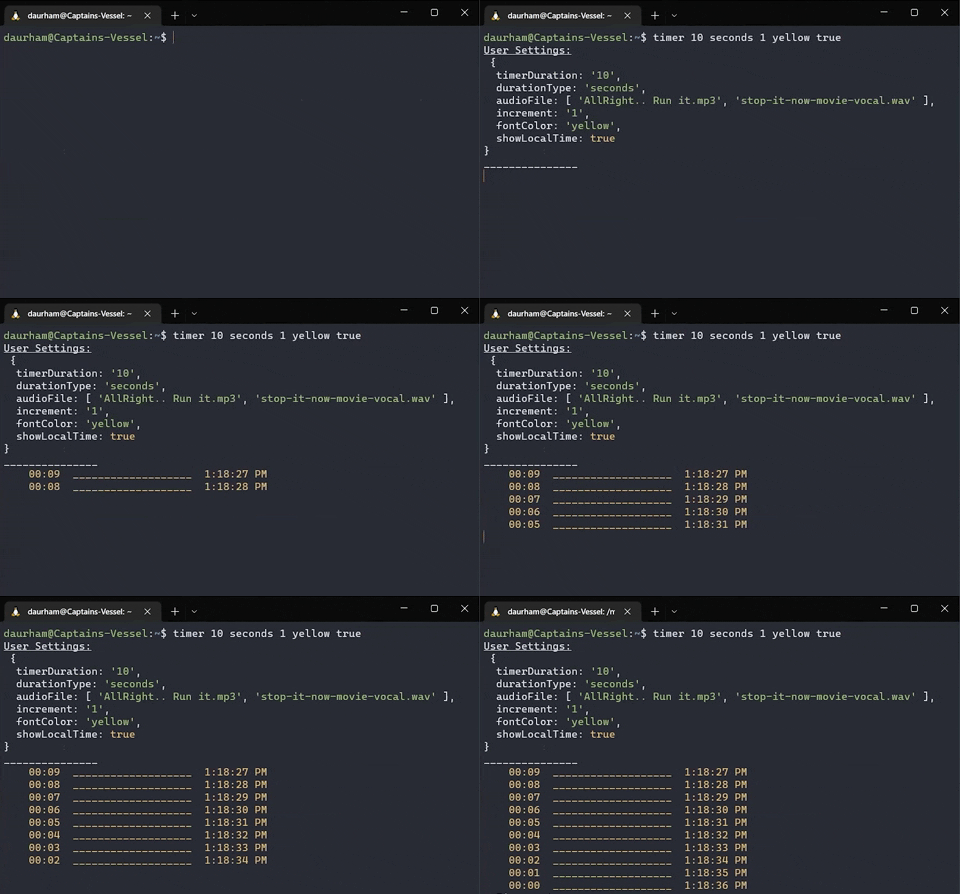
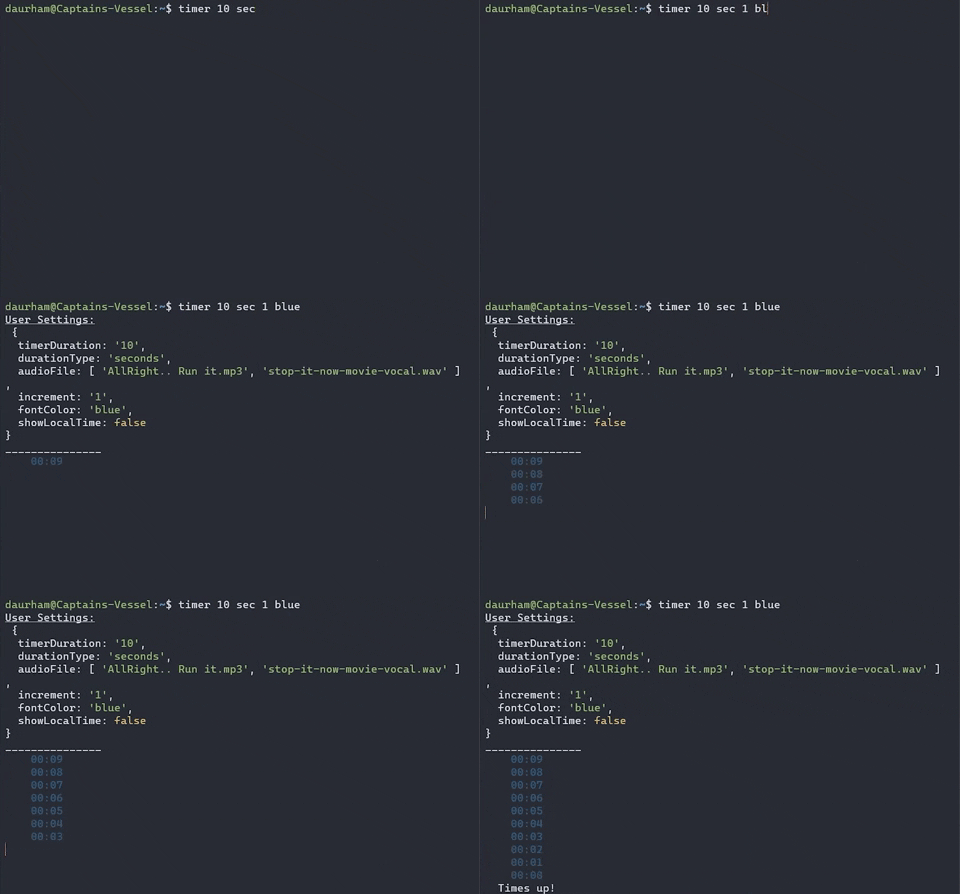
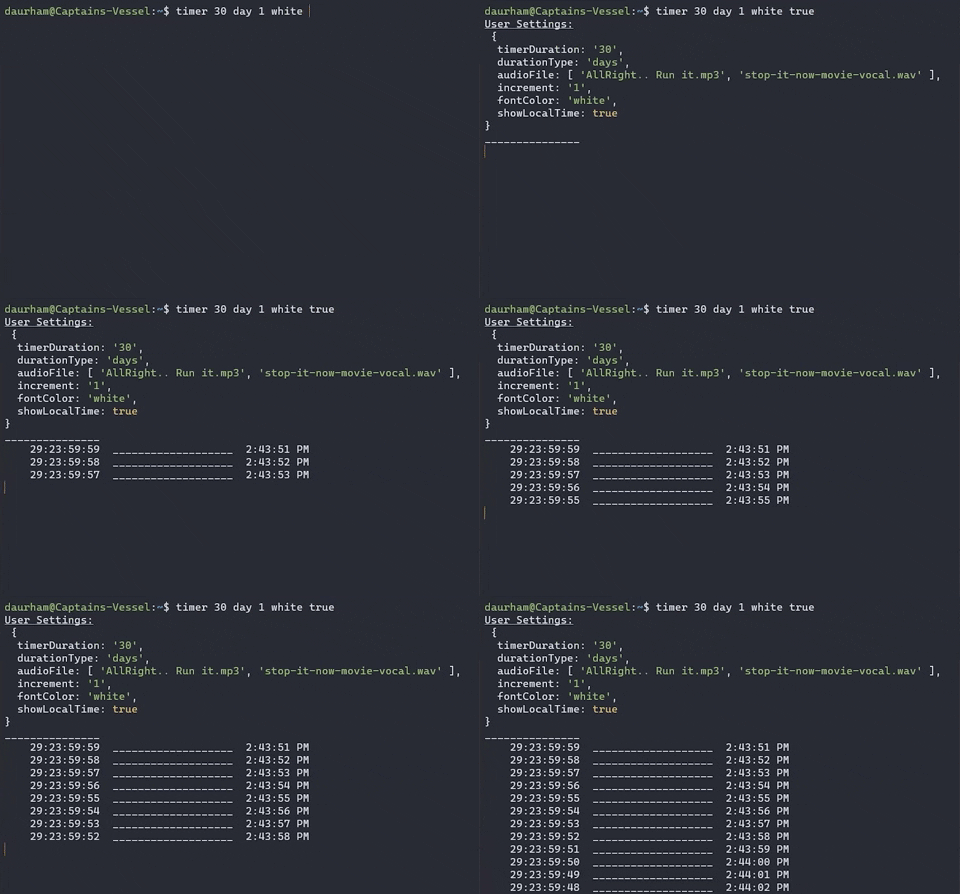

- Import audio files into the "assets" directory
- In "Terminal_Timer.js", on line 20 type in your initial and/or ending audio filename in ['the', 'array'], replacing the 2 other filenames
- As long as both new audio files are either .mp3 or .wav, you should be good to go!
- Linux: .mp3 files may be buggy, .wav work perfect
- Mac: .mp3 files may be buggy, .wav work perfect (Need more feedback)
- Windows: Untested (Need more feedback)
- WSL: I was unable to connect to my Win audio hardware from WSL
- Created By Jake Daurham


