Setting file/exe file of AutoHotkey for Vim emulation.
vim.ahk is the setting file for AutoHotkey(Autohotkey_L).
vim.exe is a standalone application made from vim.ahk.
If you've already installed AutoHotKey, just open vim.ahk with AutoHotkey.
You can also use vim.exe, which can work standalone w/o AutoHotKey.
If you are running AutoHotKey with another script,
you can include it in your script using AutoHotKey...
Please put vim.ahk in \Users\%username%\Documents
or where the script is in,
and add the following line in AutoHotkey.ahk or your script:
#Include %A_LineFile%\..\vim.ahk
at the end of the Auto-execute section.
The default setting enables vim-mode for the following applications:
- Notepad (メモ帳)
- Wordpad
- TeraPad
- Windows Explorer
- Thunderbird (only sending window)
- Microsoft PowerPoint
- Microsoft Word
- Evernote
- Visual Studio Code
- OneNote
- TexWork
- TexStudio
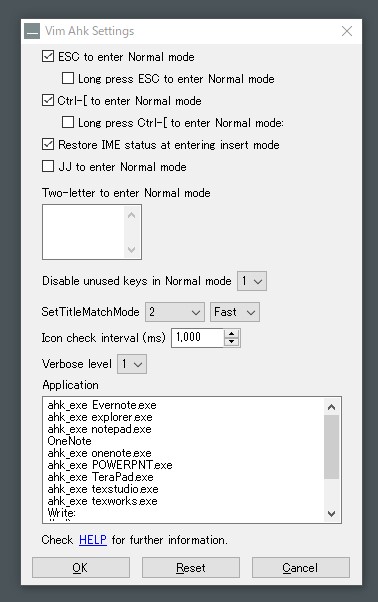
You can change them from the right click menu of task tray icon (find VimMenu-Settings in the list),
or launch the setting window by Ctrl-Alt-Shift-v.
If you want to change applications directly in the script, add GroupAdd VimGroup lines at the top of vim.ahk
(Window title/class can be seen by window spy in AutoHotkey), like:
GroupAdd VimGroup, ahk_exe notepad.exe ; NotePad
| Option | Description | Default |
|---|---|---|
| VimRestoreIME | If 1, IME status is restored at entering insert mode. | 1 |
| VimJJ | If 1, jj changes mode to Normal from Insert. |
0 |
| VimIcon | If 1, task tray icon is changed when mode is changed. | 1 |
| VimDisableUnused | Disable level of unused keys in Normal mode (see below for details). | 3 |
| VimIconCheck | If 1, check window periodically and update tray icon. | 1 |
| VimIconCheckInterval | Interval to check window (ms). | 1000 |
| VimVerbose | Verbose level (see below for details). | 0 |
Verbose level:
- 1: Nothing.
- 2: Minimum tool tips (Mode name only).
- 3: Tool tips.
- 4: Msgbox.
Disable level:
- 1: Do not disable unused keys
- 2: Disable alphabets (+shift) and symbols
- 3: Disable all including keys with modifiers (e.g. Ctrl+Z)
You can change these options from the right click menu of task tray icon (find VimMenu-Settings in the list),
or launch the setting window by Ctrl-Alt-Shift-v.

If Icon is enabled, the task try icon is changed following the mode.

Here are the main modes.
| Mode | Description |
|---|---|
| Insert Mode | Normal Windows state |
| Normal Mode | As in vim, a cursor is moved by hjkl, w, etc... and some vim like commands are available. |
| Visual Mode | There are three visual mode: Character-wise, Line-wise, and Block-wise. Block-wise visual mode is valid only for applications which support block-wise selection (such TeraPad). |
| Command Mode | Can be used for saving file/quitting. |
The initial state is Insert Mode, then Esc or Ctrl-[ brings you to Normal Mode.
In Normal Mode, i is the key to be back to Insert Mode.
v, V and Ctrl-v are the key to the Character-wise, Line-wise, and Block-wise
Visual Mode, respectively.
After pressing :, a few commands to save/quit are available.
| Key/Commands | Function |
|---|---|
| ESC/Ctrl-[ | Enter Normal Mode. Holding (0.5s) these keys emulate normal ESC. |
| jj | Enter Normal Mode. |
ESC/Ctrl-[ switch off IME if IME is on. ESC acts as ESC when IME is on and converting instructions. Ctrl-[ switches off IME and enters Normal Mode even if IME is on.
jj is optional one, which is enabled when VimJJ = 1.
| Key/Commands | Function |
|---|---|
| i/I/a/A/o/O | Enter Insert Mode at under the cursor/start of the line/next to the cursor/end of the line/next line/previous line. |
| v/V/Ctrl-v | Enter Visual Mode of Character-wise/Line-wise/Block-wise. |
| : | Enter Command Line Mode |
| Key/Commands | Function |
|---|---|
| h/j/k/l | Left/Down/Up/Right. |
| 0/$ | To the start/end of the line. |
| Ctrl-a/Ctrl-e | To the start/end of the line (emacs like). |
| ^ | To the starting non-whitespace character of the line. |
| w/W/e/E | Move a word forward (all work the same way: goes to the beginning of the word). |
| b/B | Move a word backward (b/B: the beginning of the word). |
| Ctrl-u/Ctrl-d | Go Up/Down 10 line. |
| Ctrl-b/Ctrl-f | PageUp/PageDown. |
| gg/G | Go to the top/bottom of the file |
In addition, Repeat is also available for some commands.
| Example Commands | Action |
|---|---|
| 4j | Down 4 lines |
| 3w | Move 3 words forward |
| 100j | Down 100 lines |
| Key/Commands | Function |
|---|---|
| yy, Y | Copy the line. |
| dd | Cut the line. |
| D | Cut from here to the end of the line. |
| cc | Change the line (enter Insert Mode). |
| C | Cut from here to the end of the line and enter Insert Mode. |
| x/X | Delete a character under/before the cursor (not registered in the clipboard). |
| p/P | Paste to the next/current place. If copy/cut was done with line-wise Visual Mode, it pastes to the next/current line. Some commands (such yy/dd) also force to paste as line-wise. |
y/d/c+Move Command can be used, too.
- e.g.)
yw-> copy next one word. - e.g.)
d3w-> delete next 3 words.
| Key/Commands | Function |
|---|---|
| u/Ctrl-r | Undo/Redo. |
| r/R | Replace one character/multiple characters. |
| J | Combine two lines. |
| . | It is fixed to do: Replace a following word with a clipboard (useful to use with a search). |
| ~ | Change case. |
| / | Start search (search box will be opened) |
| n/N | Search next/previous (Some applications support only next search) |
| * | Search the word under the cursor. |
| ZZ/ZQ | Save and Quit/Quit. |
| Key/Commands | Function |
|---|---|
| ESC/Ctrl-[ | Enter Normal Mode. |
| Move command | Most of move commands in the Normal Mode are available. |
| y/d/x/c | Copy/Cut/Cut/Cut and insert (d=x) |
| Y/D/X/C | Move to the end of line, then Copy/Cut/Cut/Cut and Insert Mode (D=X) |
| * | Search the selected word. |
| Key/Commands | Function |
|---|---|
| ESC/Ctrl-[ | Enter Normal Mode. |
| w + RETURN | Save |
| w + SPACE | Save as |
| w + q | Save and Quit |
| q | Quit |
| h | Open help of the application |
vim_ime.exe is an executable file which automatically switches IME off on Vim (when switching from Insert Mode to Normal Mode). The setting file can be found in this gist.