




• Documentation •
Imagine empowering your PowerShell scripts with the intelligence of OpenAI. With PSAI, I’ve transformed how we interact with AI, making it as simple as running a command. PSAI bridges the gap between PowerShell and AI, enabling seamless integration for file searches, data analysis, and more. It's not just about automation; it's about revolutionizing what we can achieve with just a few lines of code. This module opens a world of possibilities, making AI accessible directly from your console and your scripts.
PSAI brings the power of autonomous agents to PowerShell, allowing you to seamlessly integrate AI capabilities into your scripts and terminal workflows. PSAI Agents enable you to build powerful, interactive tools that handle a variety of tasks, all powered by OpenAI's models. From quick calculations to detailed web searches, PSAI offers a flexible and intuitive way to create agents that can autonomously solve complex problems.
Think of PSAI Agents as digital Swiss Army knives—each agent is a specialized tool capable of running calculations, interacting with web services, fetching data, and executing multi-step tasks, all from within your PowerShell console.
Check out What Are Autonomous Agents in this README for more information.
PSAI and Agents embody the principle of "be the automator, not the automated." By giving you the tools to create sophisticated agents, PSAI empowers you to automate repetitive, data-driven tasks and allows you to focus on strategy and creativity.
Install-Module -Name PSAIAfter installing the module, you can start working with it by getting your OpenAI API key or Azure OpenAI secrets. Or both.
You can now use the Start-Conversation alias to quickly begin a chat session.
Get/Create your OpenAI API key from https://platform.openai.com/account/api-keys.
Then set $env:OpenAIKey to your key.
After creating an Azure OpenAI resource, you can use the PSAI module to interact with it.
You need to get the following secrets from the Azure Portal and Azure AI Studio:
apiURIapiVersionapiKeydeploymentName- (Optional)
organizationId(if your Azure OpenAI resource requires theOpenAI-Organizationheader)
$secrets = @{
    apiURI         = "<Your Azure OpenAI API URI>"
    apiKey         = "<Your Azure OpenAI API Key>"
    apiVersion     = "<Your Azure OpenAI API Version>"
    deploymentName = "<Your Azure OpenAI Deployment Name>"
    organizationId = "<Your Organization ID>" # Optional
}

Set-OAIProvider AzureOpenAI
Set-AzOAISecrets @secrets
If your Azure OpenAI implementation requires the OpenAI-Organization header, provide the organizationId value. Otherwise, you can omit it.
The full set of functions can be found here https://github.com/dfinke/PSAI/wiki/
Invoke-OAIChat 'How do I output all files in a directory PowerShell?'To output all files in a directory using PowerShell, you can use the Get-ChildItem cmdlet. Here's an example of how you can do it:
Get-ChildItem -Path "C:\Path\To\Directory" -FileReplace "C:\Path\To\Directory" with the path to the directory whose files you want to output. This command will list only files in the specified directory.
If you want to list all files, including files in subdirectories, you can add the -Recurse parameter to Get-ChildItem:
Get-ChildItem -Path "C:\Path\To\Directory" -File -RecurseThis command will recursively list all files in the specified directory and its subdirectories.
Run either of these commands in PowerShell to output all files in a directory.
Autonomous agents are AI-driven entities capable of making decisions and completing tasks without continuous human guidance. PSAI Agents combine the scripting power of PowerShell with the intelligence of OpenAI’s models to automate workflows that require both information processing and decision-making capabilities.
-
Customizable Agents: Create agents that use predefined tools or add custom ones. Easily expand agent capabilities by registering new tools tailored to specific needs.
-
Natural Language Interaction: Utilize OpenAI models to interpret complex prompts and provide contextual, intelligent responses using natural language.
Below are a few examples that showcase PSAI's capabilities:
Create a simple agent with instructions:
$SecretAgent = New-Agent -Instructions "Recipes should be under 5 ingredients"
$SecretAgent | Get-AgentResponse 'Share a breakfast recipe.'PSAI Agents now support slash commands in interactive sessions, allowing you to perform quick actions without leaving the conversation flow.
/clear: Clears the console screen, providing a clean slate for your interaction./rewind [n]: Rewinds the conversation to before the last n user messages, deleting the last n user inputs and all subsequent messages. If n is not specified, defaults to 1./listmsgs: Lists all user messages in the current conversation.
In an interactive agent session, simply type a slash command at the prompt:
/clear
This will execute the command immediately. Unknown commands will display an error message, and normal input continues the conversation with the agent.
The ConvertTo-AIPrompt function packages any GitHub repository into an AI-optimized XML format, making it easy to feed your codebase to AI tools like ChatGPT, Claude, or Gemini.
- AI-Optimized: Formats your codebase in a way that's easy for AI to understand and process.
- Simple to Use: You need just one command to pack your entire repository.
- Customizable: Easily configure what to include or exclude.
# Export a repository to a single file
ConvertTo-AIPrompt -RepoSlug "dfinke/ImportExcel" -OutputPath "D:\ImportExcel.txt"

# Include only specific file types
ConvertTo-AIPrompt -RepoSlug "dfinke/ImportExcel" -Include "*.ps1","*.md" -OutputPath "D:\ImportExcel-docs-and-code.txt"

# Exclude specific file types
# Look at a single directory in the repo
ConvertTo-AIPrompt -RepoSlug "dfinke/ImportExcel/Examples" -Exclude "*.xlsx" -OutputPath "D:\ImportExcel-examples.txt"

# Return as string instead of saving to file
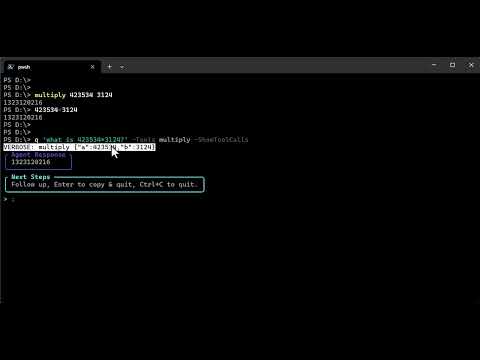
$repoContent = ConvertTo-AIPrompt -RepoSlug "username/repo"Invoke-QuickPrompt now supports two new parameters Tools and ShowToolCalls.
Pass in PowerShell functions, builtin or your own, to the Tools parameter. Use ShowToolCalls to see the tools used in the response to your prompts.
We are continuously evolving PSAI Agents to meet more diverse automation needs:
- More Tools: Including weather information, document parsing, and task automation features.
- Interactive Sessions: Richer CLI interactions for more dynamic agent conversations.
- Workflow Automation: Agents capable of multi-step workflows that integrate with existing scripts and systems.
For questions or feedback, open an issue on GitHub or reach out via Twitter or LinkedIn.
Happy Automating!


