The official Visual Studio Code extension for Vale and Vale Server.
The Vale extension for VS Code provides customizable spelling, style, and grammar checking for a variety of markup formats (Markdown, AsciiDoc, reStructuredText, HTML, and DITA).
As of v0.10.0, the extension supports both Vale (the command-line tool) and Vale Server (the desktop application).
NOTE: While this extension supports both Vale CLI and Vale Server, many of the extension's more advanced features (such as Quick Fixes and Vocabulary Management) are only available through Vale Server.
-
Install Vale Server;
-
install
vale-vscode(this extension) via the Marketplace; and -
restart VS Code (recommended).
-
Install Vale;
-
install
vale-vscode(this extension) via the Marketplace; -
set
vale.core.useCLItotruein the extension settings (Preferences > Extensions > Vale > Use CLI); and -
restart VS Code (recommended).
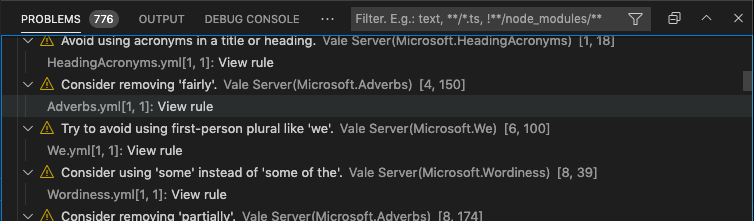
Browse detailed information for each alert, including the file location, style, and rule ID.
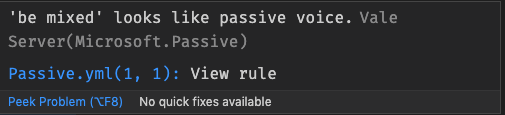
Navigate from an in-editor alert to a rule's implementation on your StylesPath by clicking "View Rule".
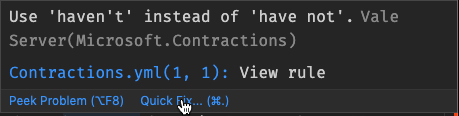
Fix misspellings, word usage, capitalization, and more using Quick Fixes (macOS: cmd + ., Windows/Linux: Ctrl + .)

Add words and phrases to your active Vocab through the in-editor context menu.

Jump to your active Vocab files directly from the Command Palette.
Use the Vale: View Folder Report command to generate a report for the active folder.
The extension offers a number of settings and configuration options (Preferences > Extensions > Vale), which are split into three groups: Vale > Core (Vale and Vale Server), Vale > Server (Vale Server only), and Vale > Vale CLI (Vale only).
-
vale.core.useCLI(default:false): Use Vale CLI instead of Vale Server. -
vale.server.serverURL(default:http://127.0.0.1:7777): URL to your running Vale Server instance. -
vale.server.provideFixes(default:true): Offer solutions to alerts using the 'Quick Fix' button. -
vale.server.lintContext(default:0): Only lint the active portion of a document (as determined by the cursor position), allowing for efficient on-the-fly linting of large documents. There are three supported values:-1(applies to all files),0(disabled),n(applies to any file withlines >= n). -
vale.valeCLI.config(default:null): Absolute path to a Vale configuration file. Use the predefined${workspaceFolder}variable to reference configuration file from a custom location. (NOTE: On Windows you can use '/' and can omit.cmdin the path value.) If not specified, the extension uses the default search process (relative to the current file).Example
-
vale.valeCLI.path(default:null): Absolute path to the Vale binary. Use the predefined${workspaceFolder}variable to reference a non-global binary. (NOTE: On Windows you can use '/' and can omit.cmdin the path value.)Example
{ // You can use ${workspaceFolder} it will be replaced by workspace folder path "vale.valeCLI.path": "${workspaceFolder}/node_modules/.bin/vale" // or use some absolute path "vale.valeCLI.path": "/some/path/to/vale" } -
vale.valeCLI.minAlertLevel(default:inherited): Defines from which level of errors and above to display in the problems output.
{
  // You can use ${workspaceFolder} it will be replaced by workspace folder path
  "vale.valeCLI.config": "${workspaceFolder}/node_modules/some-package/.vale.ini"

  // or use some absolute path
  "vale.valeCLI.config": "/some/path/to/.vale.ini"
}