-
Notifications
You must be signed in to change notification settings - Fork 49
feat: Migration section overhaul #727
New issue
Have a question about this project? Sign up for a free GitHub account to open an issue and contact its maintainers and the community.
By clicking “Sign up for GitHub”, you agree to our terms of service and privacy statement. We’ll occasionally send you account related emails.
Already on GitHub? Sign in to your account
Open
tamalchowdhury
wants to merge
14
commits into
main
Choose a base branch
from
tamal/add/clerk-and-firebase-migration-guide
base: main
Could not load branches
Branch not found: {{ refName }}
Loading
Could not load tags
Nothing to show
Loading
Are you sure you want to change the base?
Some commits from the old base branch may be removed from the timeline,
and old review comments may become outdated.
Open
Changes from all commits
Commits
Show all changes
14 commits
Select commit
Hold shift + click to select a range
d893466
initial clerk migration guide
tamalchowdhury 0094f66
created the clerk migration guide
tamalchowdhury 37f1421
add firebase migration guide
tamalchowdhury 3e0e6c6
fix coderabbit suggestion
tamalchowdhury 73745f8
update with new outline
tamalchowdhury d039f74
update clerk, auth0, and main page
tamalchowdhury 5744e85
update cognito, azure b2c, firebase and supabase pages
tamalchowdhury 47c784b
update the bulk import guide
tamalchowdhury 13a3eec
drip update
tamalchowdhury 76b273d
update the drip feed doc
tamalchowdhury e6536af
update the drip feed doc
tamalchowdhury 4488fd7
completed the drip feed tutorial
tamalchowdhury e0c4eae
coderabbit fix
tamalchowdhury fb6a963
fix broken links
tamalchowdhury File filter
Filter by extension
Conversations
Failed to load comments.
Loading
Jump to
Jump to file
Failed to load files.
Loading
Diff view
Diff view
There are no files selected for viewing
209 changes: 111 additions & 98 deletions
209
src/content/docs/get-started/switch-to-kinde/auth0-to-kinde.mdx
Large diffs are not rendered by default.
Oops, something went wrong.
114 changes: 114 additions & 0 deletions
114
src/content/docs/get-started/switch-to-kinde/aws-cognito-to-kinde.mdx
This file contains hidden or bidirectional Unicode text that may be interpreted or compiled differently than what appears below. To review, open the file in an editor that reveals hidden Unicode characters.
Learn more about bidirectional Unicode characters
| Original file line number | Diff line number | Diff line change |
|---|---|---|
| @@ -0,0 +1,114 @@ | ||
| --- | ||
| page_id: df969c6a-b071-46fe-958a-df2a8f913428 | ||
| title: Migrate to Kinde from AWS Cognito | ||
| sidebar: | ||
| order: 6 | ||
| label: AWS Cognito | ||
| tableOfContents: | ||
| maxHeadingLevel: 3 | ||
| relatedArticles: | ||
| - c4bc277a-5ec7-418c-ba1c-4d58c9ddfd7d | ||
| - f3dc6458-7d1e-407e-bc4c-62ac0ee4c075 | ||
| - f6eaf29b-d8d9-4caf-bc1d-5319b6fb8ffc | ||
| - e89d246a-5cdf-4993-9cee-94b31ec27583 | ||
| description: Export users from AWS Cognito and migrate to Kinde. Because Cognito does not export passwords, drip-feed migration is the recommended approach for a seamless user experience. | ||
| topics: | ||
| - get-started | ||
| - switch-to-kinde | ||
| sdk: [] | ||
| languages: | ||
| - bash | ||
| - csv | ||
| audience: | ||
| - developers | ||
| - admins | ||
| complexity: advanced | ||
| keywords: | ||
| - aws cognito migration | ||
| - cognito to kinde | ||
| - migrate from cognito | ||
| - cognito export | ||
| - user pool export | ||
| - drip feed migration | ||
| - admin user password auth | ||
| updated: 2026-05-05 | ||
| featured: false | ||
| deprecated: false | ||
| ai_summary: "Step-by-step guide for migrating users from AWS Cognito to Kinde. Because Cognito does not export hashed passwords, drip-feed migration is the recommended approach — using Kinde's user:existing_password_provided workflow trigger to validate each user's password against Cognito on first login via the ADMIN_USER_PASSWORD_AUTH flow, with no password reset required. Covers exporting users from Cognito using the AWS CLI with list-users, paginating large user pools, and converting the JSON output to a Kinde-compatible CSV using the Cognito sub as the id field. Also covers the bulk import fallback for cases where drip-feed is not an option, where users are imported by email only and prompted to set a new password on first sign-in. Includes prerequisites: enabling ADMIN_USER_PASSWORD_AUTH on the Cognito App Client and enabling Enumeration protection in Kinde before starting drip-feed migration." | ||
| --- | ||
|
|
||
| Migrate your users from AWS Cognito to Kinde. The main constraint is that Cognito does not allow password export, so a direct password migration is not possible — drip-feed migration is the recommended path. | ||
|
|
||
| ### What you need | ||
|
|
||
| - A Kinde account with **Admin** access | ||
| - Kinde account configured to match your current auth provider — see [before you migrate](/get-started/switch-to-kinde/switch-to-kinde-for-user-authentication/#before-you-migrate) | ||
| - AWS CLI installed and configured with access to your Cognito User Pool | ||
|
|
||
| ## Key considerations | ||
|
|
||
| - **No native export UI** — Cognito doesn't have a one-click export. You'll need to use the AWS CLI or write a script to paginate through the user pool. | ||
| - **Passwords cannot be exported** — Cognito does not provide access to hashed passwords. Users imported from Cognito will need to reset their password or sign in via a new method — unless you use drip-feed migration. | ||
| - **Drip-feed migration is the recommended approach** — using Kinde's `user:existing_password_provided` workflow, you can validate each user's password against Cognito on first login and migrate them seamlessly with no password reset required. | ||
|
|
||
| ## Export users from Cognito | ||
|
|
||
| ### 1. Export user data | ||
|
|
||
| Cognito has no UI export. Use the AWS CLI to list users from your User Pool: | ||
|
|
||
| ```bash | ||
| aws cognito-idp list-users \ | ||
| --user-pool-id YOUR_USER_POOL_ID \ | ||
| --region YOUR_AWS_REGION \ | ||
| --query 'Users[*].{email:Attributes[?Name==`email`].Value|[0], sub:Username, name:Attributes[?Name==`name`].Value|[0]}' \ | ||
| --output json > cognito-users.json | ||
| ``` | ||
|
|
||
| For large user pools, use `--pagination-token` to page through results, or use a script to loop until all users are retrieved. | ||
|
|
||
| ### 2. Prepare your CSV | ||
|
|
||
| Convert the JSON output to a Kinde-compatible CSV. The `id` field should be the Cognito `sub` (the user's UUID in Cognito). | ||
|
|
||
| ```text | ||
| id,email,first_name,last_name,email_verified | ||
| {sub},{email},{given_name},{family_name},TRUE | ||
| ``` | ||
|
|
||
| For the full list of supported CSV fields — including organizations, roles, and permissions — see [Prepare your CSV](/get-started/switch-to-kinde/migrate-users-bulk-import/#3-prepare-your-csv) in the bulk import guide. | ||
|
|
||
| ## Choose your migration method | ||
|
|
||
| ### Drip-feed via Kinde Workflow (recommended) | ||
|
|
||
| Migrate users with no downtime and no password resets. On first login, a Kinde workflow validates the user's password against Cognito using the `ADMIN_USER_PASSWORD_AUTH` flow. If valid, the user is created in Kinde and their password is set. | ||
|
|
||
| **Before you start:** | ||
|
|
||
| 1. [Bulk import](/get-started/switch-to-kinde/migrate-users-bulk-import/) user email addresses (without passwords) to seed Kinde with your user list. | ||
| 2. Ensure `ADMIN_USER_PASSWORD_AUTH` is enabled on your Cognito App Client. | ||
| 3. Enable **Enumeration protection** in Kinde: **Settings > Attack protection > Enumeration protection**. | ||
|
|
||
| The [drip-feed migration tutorial](/workflows/workflow-tutorials/drip-feed-migration/) includes the Cognito-specific workflow code. | ||
|
|
||
| ### Bulk import (with password reset) | ||
|
|
||
| If drip-feed is not an option, import users by email only. Users will be prompted to set a new password or sign in via a passwordless method on first sign-in. | ||
|
|
||
| 1. Export emails and user details using the CLI command above. | ||
| 2. Prepare your CSV (no password columns) - see the [bulk import guide](/get-started/switch-to-kinde/migrate-users-bulk-import/) | ||
| 3. Enable passwordless sign-in or password authentication in Kinde. | ||
| 4. Go to Kinde > **Users**, select **Import users**, then select **Custom CSV**. | ||
| 5. Follow the on-screen prompts to upload your file. | ||
| 6. Review any errors reported after import. Fix the CSV and re-import to resolve them. | ||
|
|
||
| ## Next steps | ||
|
|
||
| - If using drip-feed, monitor the workflow logs to confirm users are migrating successfully. | ||
| - Once migration traffic from Cognito drops to zero, disable the workflow and decommission your Cognito User Pool. | ||
| - For users who never log in during the migration period, decide whether to keep them (force a password reset via [the API](/get-started/switch-to-kinde/create-users-with-api/)) or remove inactive accounts. | ||
|
|
||
| ## Get support | ||
|
|
||
| If you need help with your migration, contact [Kinde support.](https://kinde.com/support) |
138 changes: 138 additions & 0 deletions
138
src/content/docs/get-started/switch-to-kinde/azure-b2c-to-kinde.mdx
This file contains hidden or bidirectional Unicode text that may be interpreted or compiled differently than what appears below. To review, open the file in an editor that reveals hidden Unicode characters.
Learn more about bidirectional Unicode characters
| Original file line number | Diff line number | Diff line change |
|---|---|---|
| @@ -0,0 +1,138 @@ | ||
| --- | ||
| page_id: d0e70a47-6e28-4a63-8215-76eec9fee0a0 | ||
| title: Migrate to Kinde from Azure B2C | ||
| sidebar: | ||
| order: 7 | ||
| label: Azure B2C | ||
| tableOfContents: | ||
| maxHeadingLevel: 3 | ||
| relatedArticles: | ||
| - c4bc277a-5ec7-418c-ba1c-4d58c9ddfd7d | ||
| - f3dc6458-7d1e-407e-bc4c-62ac0ee4c075 | ||
| - f6eaf29b-d8d9-4caf-bc1d-5319b6fb8ffc | ||
| - e89d246a-5cdf-4993-9cee-94b31ec27583 | ||
| description: Export users from Azure B2C and migrate to Kinde. Azure B2C does not export passwords, so choose between bulk import with password reset, API-based migration, drip-feed, or a hard cutover. | ||
| topics: | ||
| - get-started | ||
| - switch-to-kinde | ||
| sdk: [] | ||
| languages: | ||
| - bash | ||
| - csv | ||
| audience: | ||
| - developers | ||
| - admins | ||
| complexity: advanced | ||
| keywords: | ||
| - azure b2c migration | ||
| - azure ad b2c | ||
| - migrate from azure | ||
| - azure b2c export | ||
| - user migration | ||
| - drip feed migration | ||
| - ropc | ||
| - resource owner password credentials | ||
| updated: 2026-05-05 | ||
| featured: false | ||
| deprecated: false | ||
| ai_summary: "Step-by-step guide for migrating users from Azure B2C to Kinde. Because Azure B2C does not export passwords, the guide covers four migration approaches: drip-feed (recommended), bulk import with API sync, bulk import only, and hard cutover. Drip-feed uses Kinde's user:existing_password_provided workflow trigger to validate each login against Azure B2C's ROPC endpoint on first sign-in, with no password reset required. Bulk import options import users by email only and prompt them to set a new password or use passwordless on first sign-in. Covers exporting users via the Azure portal Download users option or programmatically via the Microsoft Graph API with pagination, and maps Azure B2C fields (id, mail, givenName, surname, accountEnabled) to Kinde's CSV format. Includes guidance on handling local accounts vs. federated social identities, setting up the MS Entra ID connection in Kinde before importing AD-based users, and enabling the ROPC user flow in Azure B2C and Enumeration protection in Kinde before starting drip-feed migration." | ||
| --- | ||
|
|
||
| Migrate your users from Azure B2C to Kinde. Azure B2C does not export passwords, so the migration approach you choose will determine how users authenticate on first sign-in. | ||
|
|
||
| ### What you need | ||
|
|
||
| - A Kinde account with **Admin** access | ||
| - Kinde account configured to match your current auth provider — see [before you migrate](/get-started/switch-to-kinde/switch-to-kinde-for-user-authentication/#before-you-migrate) | ||
| - Azure B2C tenant with user export permissions | ||
|
|
||
| ## Key considerations | ||
|
|
||
| - **Passwords cannot be exported** — Azure B2C does not provide access to hashed passwords. Users will need to reset their password or use a new sign-in method, unless you use drip-feed migration. | ||
| - **Local accounts vs. federated identities** — users who signed in via social providers (Google, Facebook, etc.) in Azure B2C can be imported by email and prompted to re-link their social login. | ||
| - **MS Entra ID connection** — if you use Azure AD-based logins, [set up the MS Entra ID connection in Kinde](/authenticate/enterprise-connections/azure/) before importing users so Kinde can match them to the right connection. | ||
|
|
||
| ## Export users from Azure B2C | ||
|
|
||
| ### Option A: Azure portal | ||
|
|
||
| 1. In the [Azure portal](https://portal.azure.com/), go to **Azure AD B2C**. | ||
| 2. Select **Users** from the left menu. | ||
| 3. Select **Download users** to export a CSV of all users. | ||
|
|
||
| The portal export includes basic user properties (email, display name, object ID). It does not include passwords. | ||
|
|
||
| ### Option B: Microsoft Graph API (recommended for large user bases) | ||
|
|
||
| Use the Microsoft Graph API to export users programmatically with full control over which attributes are included: | ||
|
|
||
| ```bash | ||
| GET https://graph.microsoft.com/v1.0/users?$select=id,displayName,givenName,surname,mail,userPrincipalName,accountEnabled | ||
| Authorization: Bearer {access_token} | ||
| ``` | ||
|
|
||
| Paginate using the `@odata.nextLink` value in the response. Convert the output to a Kinde-compatible CSV. | ||
|
|
||
| **Column mapping:** | ||
|
|
||
| | Azure B2C field | Kinde column | | ||
| |-----------------|--------------| | ||
| | `id` | `id` | | ||
| | `mail` or `userPrincipalName` | `email` | | ||
| | `givenName` | `first_name` | | ||
| | `surname` | `last_name` | | ||
| | `accountEnabled` | `email_verified` (use `TRUE`/`FALSE`) | | ||
|
coderabbitai[bot] marked this conversation as resolved.
|
||
|
|
||
| ## Choose your migration method | ||
|
|
||
| ### Drip-feed (recommended) | ||
|
|
||
| Migrate users seamlessly as they log in. A Kinde workflow validates each login against Azure B2C's ROPC endpoint, creates the user in Kinde on success, and takes over authentication going forward. | ||
|
|
||
| **Before you start:** | ||
| 1. [Bulk import](/get-started/switch-to-kinde/migrate-users-bulk-import/) user email addresses (without passwords) to seed Kinde. | ||
| 2. Enable **Enumeration protection** in Kinde (**Settings > Attack protection > Enumeration protection**). | ||
| 3. Enable the ROPC user flow in your Azure B2C tenant. | ||
|
|
||
| The [drip-feed migration tutorial](/workflows/workflow-tutorials/drip-feed-migration/) includes the Azure B2C-specific workflow code. | ||
|
|
||
| ### Bulk import with API sync (catch new registrations) | ||
|
|
||
| Export users and import into Kinde. During the migration window, use the Kinde API to push any new sign-ups from Azure B2C directly to Kinde so no one is missed. | ||
|
|
||
| 1. Set up an API integration to push new Azure B2C registrations to Kinde in real time. | ||
| 2. Export existing users using the portal or Graph API. | ||
| 3. Import into Kinde via [bulk import](/get-started/switch-to-kinde/migrate-users-bulk-import/). | ||
| 4. Switch to Kinde. | ||
| 5. Users will be prompted to set a new password or sign in via passwordless on first sign-in. | ||
|
|
||
| See [Create users with the API](/get-started/switch-to-kinde/create-users-with-api/) for the Kinde API steps. | ||
|
|
||
| ### Bulk import only | ||
|
|
||
| Simplest option. Export users, import into Kinde, switch. No API integration needed. | ||
|
|
||
| 1. Export users using the portal or Graph API. | ||
| 2. Re-import before cutover to catch any new registrations. | ||
| 3. Follow the [bulk import guide](/get-started/switch-to-kinde/migrate-users-bulk-import/). | ||
| 4. Users set a new password or sign in via passwordless on first sign-in. | ||
|
|
||
| ### Hard cutover (maintenance window) | ||
|
|
||
| For the cleanest cutover when a short service interruption is acceptable: | ||
|
|
||
| 1. Block new registrations in Azure B2C (not logins — since passwords aren't migrated, existing logins don't affect the migration). | ||
| 2. Export all users. | ||
| 3. Import into Kinde via [bulk import](/get-started/switch-to-kinde/migrate-users-bulk-import/). | ||
| 4. Switch to Kinde. | ||
| 5. Users set a new password or sign in via passwordless on first sign-in. | ||
|
|
||
| ## Next steps | ||
|
|
||
| - If using drip-feed, monitor the workflow logs to confirm users are migrating successfully. | ||
| - Once migration traffic from Azure B2C drops to zero, disable the workflow and decommission your Azure B2C tenant. | ||
| - Notify users of the change before go-live — especially that they will need to verify their email or set a new password on first sign-in. | ||
|
|
||
| ## Get support | ||
|
|
||
| If you need help with your migration, contact [Kinde support.](https://kinde.com/support) | ||
117 changes: 117 additions & 0 deletions
117
src/content/docs/get-started/switch-to-kinde/clerk-to-kinde.mdx
This file contains hidden or bidirectional Unicode text that may be interpreted or compiled differently than what appears below. To review, open the file in an editor that reveals hidden Unicode characters.
Learn more about bidirectional Unicode characters
| Original file line number | Diff line number | Diff line change |
|---|---|---|
| @@ -0,0 +1,117 @@ | ||
| --- | ||
| page_id: 8b3e1d47-2f96-4a0c-c8d5-6e7a2b9f3150 | ||
| title: Migrate to Kinde from Clerk | ||
| sidebar: | ||
| order: 3 | ||
| label: Clerk | ||
| tableOfContents: | ||
| maxHeadingLevel: 3 | ||
| relatedArticles: | ||
| - c4bc277a-5ec7-418c-ba1c-4d58c9ddfd7d | ||
| - f6eaf29b-d8d9-4caf-bc1d-5319b6fb8ffc | ||
| - b338980f-7dd6-4ba5-90aa-330247a45536 | ||
| - e89d246a-5cdf-4993-9cee-94b31ec27583 | ||
| description: Export users and hashed passwords from Clerk and import them into Kinde. Clerk supports bcrypt exports, so users keep their existing passwords. | ||
| topics: | ||
| - get-started | ||
| - switch-to-kinde | ||
| sdk: [] | ||
| languages: | ||
| - csv | ||
| audience: | ||
| - developers | ||
| - admins | ||
| complexity: intermediate | ||
| keywords: | ||
| - clerk migration | ||
| - clerk to kinde | ||
| - migrate from clerk | ||
| - user import | ||
| - password migration | ||
| - hashed passwords | ||
| - bcrypt | ||
| - csv import | ||
| - csv column mapping | ||
| - bulk import | ||
| - authentication migration | ||
| - clerk export | ||
| - clerk csv | ||
| updated: 2026-05-05 | ||
| featured: false | ||
| deprecated: false | ||
| ai_summary: "Step-by-step guide for migrating users from Clerk to Kinde using a bulk CSV import. Clerk supports exporting bcrypt-hashed passwords, and Kinde supports bcrypt natively, so users can sign in with their existing passwords without a forced reset — no drip-feed migration required. The guide covers: exporting users from the Clerk dashboard via Configure > Settings > User exports; renaming CSV columns to match Kinde's expected format, including primary_email_address to email, password_digest to hashed_password, password_hasher to hashing_method, and primary_phone_number to phone; removing columns Kinde does not use such as username, verified_email_addresses, totp_secret, and created_at; enabling password authentication in Kinde before importing; and uploading the prepared CSV via Users > Import users > Custom CSV. Errors flagged during import can be fixed by editing the CSV and re-importing — already-imported records are skipped. Links to the full bulk import guide for additional CSV fields covering organizations, roles, and permissions." | ||
| --- | ||
|
|
||
| Migrate your users from Clerk to Kinde. Clerk supports exporting hashed passwords, and Kinde supports bcrypt — so your users can sign in with their existing passwords without a forced reset. | ||
|
|
||
| ### What you need | ||
|
|
||
| - A Kinde account with **Admin** access | ||
| - Kinde account configured to match your current auth provider - see [before you migrate](/get-started/switch-to-kinde/switch-to-kinde-for-user-authentication/#before-you-migrate) | ||
| - Clerk account with user export permissions | ||
|
|
||
| ## Key considerations | ||
|
|
||
| - **bcrypt passwords are fully supported** — Kinde imports bcrypt hashes directly. Users keep their existing password with no reset required. | ||
| - **No drip-feed needed** — because passwords can be migrated cleanly, a straightforward bulk import is the recommended approach for most Clerk migrations. | ||
| - **File format** — Clerk exports a CSV file. You'll need to map the Clerk column names to Kinde's expected column names before importing. | ||
|
|
||
| ## Migration guide | ||
|
|
||
| ### 1. Export users from Clerk | ||
|
|
||
| 1. Sign in to your [Clerk dashboard](https://dashboard.clerk.com/apps). | ||
| 2. Select the application you are exporting users from. | ||
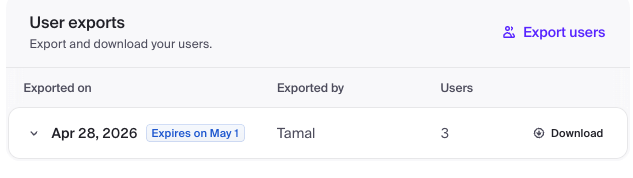
| 3. Go to **Configure > Settings**. | ||
| 4. Under **User exports**, select **Export users**. | ||
| 5. When the export is ready, select **Download**. This downloads a CSV file. | ||
|
|
||
|  | ||
|
|
||
| See Clerk's documentation on [exporting users](https://clerk.com/docs/guides/development/migrating/overview#export-your-users-data-from-the-clerk-dashboard). | ||
|
|
||
| ### 2. Map Clerk columns to Kinde's CSV format | ||
|
|
||
| Rename the columns in your Clerk export to match what Kinde expects. The only required column is `email` — everything else is optional but recommended. | ||
|
|
||
| | Clerk column | Rename to | Notes | | ||
| |---|---|---| | ||
| | `primary_email_address` | `email` | Required — primary sign-in identifier | | ||
| | | `email_verified` | `TRUE` or `FALSE` | | ||
| | `id` | `id` | Keep as-is — helps match records on re-import | | ||
| | `first_name` | `first_name` | Keep as-is | | ||
| | `last_name` | `last_name` | Keep as-is | | ||
| | `primary_phone_number` | `phone` | International format, e.g. `+61555111555` | | ||
| | `password_digest` | `hashed_password` | bcrypt hash — preserves existing passwords | | ||
| | `password_hasher` | `hashing_method` | Value will be `bcrypt` | | ||
|
|
||
| For the full list of supported CSV fields — including organizations, roles, and permissions — see [Prepare your CSV](/get-started/switch-to-kinde/migrate-users-bulk-import/#3-prepare-your-csv) in the bulk import guide. | ||
|
|
||
| <Aside title="Enable password authentication first"> | ||
|
|
||
| If you are importing hashed passwords, enable password authentication in Kinde before importing. See [Password authentication](/authenticate/authentication-methods/password-authentication/). | ||
|
|
||
| </Aside> | ||
|
|
||
| ### 3. Import into Kinde | ||
|
|
||
| 1. In Kinde, go to **Users**, then select **Import users**. | ||
| 2. Select **Custom CSV**. | ||
| 3. Follow the on-screen prompts to upload your file. | ||
| 4. Review any errors reported after import. Fix the CSV and re-import to resolve them. | ||
|
|
||
| See the [bulk import guide](/get-started/switch-to-kinde/migrate-users-bulk-import/) to learn more. | ||
|
|
||
| ### 4. Test the migration | ||
|
|
||
| 1. Sign in to Kinde with a user from your Clerk export. | ||
| 2. Verify they can sign in with their existing Clerk credentials. | ||
| 3. Notify users of any changes to their sign-in experience before going live. | ||
|
|
||
| ## Troubleshooting | ||
|
|
||
| Review the CSV for missing or duplicated values before importing. Kinde flags errors during import and reports them. Most errors can be fixed by editing the CSV and re-importing — records already imported without changes are skipped. | ||
|
|
||
| ## Get support | ||
|
|
||
| If you need help with your migration, contact [Kinde support.](https://kinde.com/support) |
Oops, something went wrong.
Oops, something went wrong.
Add this suggestion to a batch that can be applied as a single commit.
This suggestion is invalid because no changes were made to the code.
Suggestions cannot be applied while the pull request is closed.
Suggestions cannot be applied while viewing a subset of changes.
Only one suggestion per line can be applied in a batch.
Add this suggestion to a batch that can be applied as a single commit.
Applying suggestions on deleted lines is not supported.
You must change the existing code in this line in order to create a valid suggestion.
Outdated suggestions cannot be applied.
This suggestion has been applied or marked resolved.
Suggestions cannot be applied from pending reviews.
Suggestions cannot be applied on multi-line comments.
Suggestions cannot be applied while the pull request is queued to merge.
Suggestion cannot be applied right now. Please check back later.
Uh oh!
There was an error while loading. Please reload this page.