


A VS Code extension that provides quick command buttons for the terminal. Define your frequently used commands, then execute them with a single click.
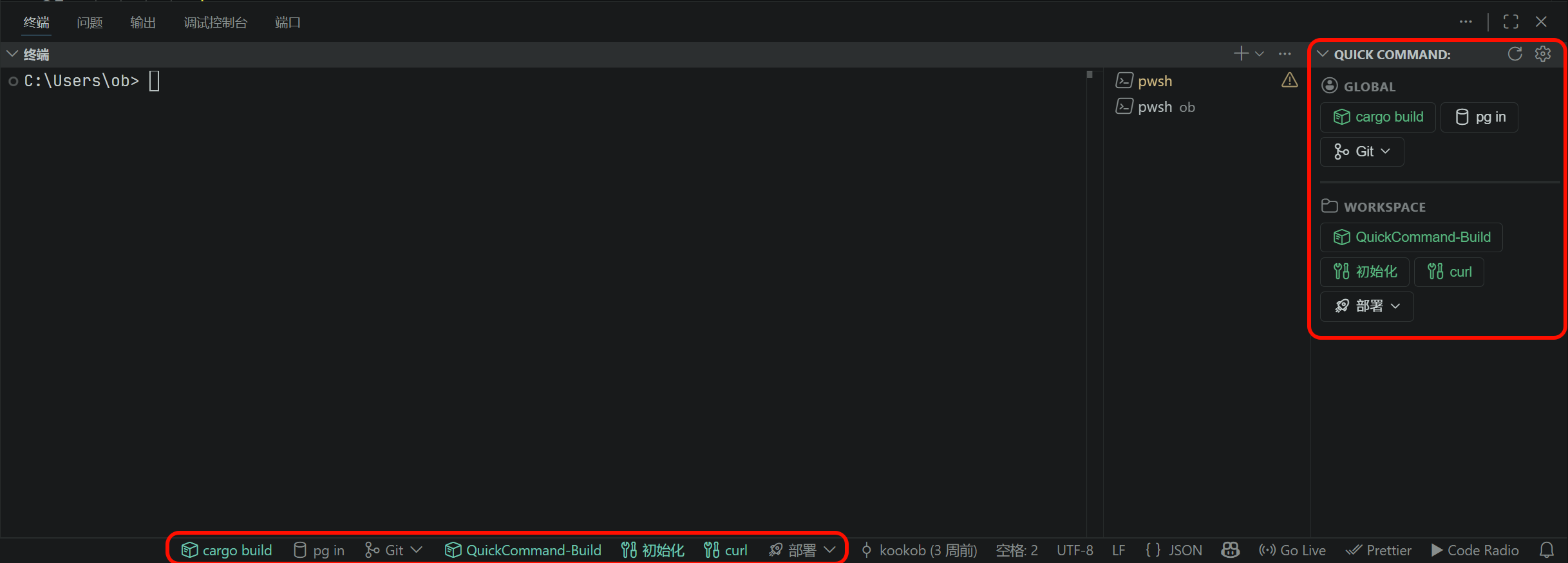
A dedicated sidebar panel in the Activity Bar displays all your configured command buttons. Buttons are organized into two sections:
- Global — User-level commands shared across all projects
- Workspace — Project-specific commands for the current workspace
Group commands are displayed with a section title and inline sub-command buttons. Single commands appear as individual buttons in a flex row.
Any button can optionally be pinned to the bottom status bar by setting "showIn": ["statusbar"]. Group buttons appear as dropdowns, and individual sub-commands can also be pinned separately.
- Single Command — Send a command to the active terminal with one click
- Multi-line Commands — Define an array of commands to send sequentially
- Command Groups — Organize related commands under a collapsible group
- Execute Control — Choose whether commands auto-execute (press Enter) or just type into the terminal for review
- Two-level Config — Global commands (user settings) + Workspace commands (project settings), merged and displayed together
- Codicon Icons — Full support for VS Code's built-in codicon icon library
- Visual Indicators — Green dot on auto-execute buttons, click feedback animation
- Tooltip Preview — Hover over any button to see the actual command(s) it will send
Quick Command uses two configuration keys:
| Key | Scope | Description |
|---|---|---|
quickCommand.buttons |
User (global) | Commands shared across all projects |
quickCommand.workspaceButtons |
Workspace | Commands specific to the current project |
| Property | Type | Default | Description |
|---|---|---|---|
label |
string |
— | Button display text (required) |
icon |
string |
"terminal" |
Codicon icon name |
command |
string | string[] |
— | Command(s) to send to terminal |
execute |
boolean |
false |
Auto-press Enter after sending |
showIn |
("all" | "sidebar" | "statusbar")[] |
[] |
Control whether the button appears in the sidebar, status bar, or both |
group |
SubCommand[] |
— | Sub-commands (makes this a group button) |
Sub-commands support label, command, execute, and showIn.
User Settings (settings.json):
{
  "quickCommand.buttons": [
    {
      "label": "Dev",
      "icon": "play",
      "command": "npm run dev",
      "execute": true,
      "showIn": ["sidebar", "statusbar"]
    },
    {
      "label": "Build",
      "icon": "package",
      "command": "npm run build"
    },
    {
      "label": "Git",
      "icon": "git-merge",
      "group": [
        { "label": "Pull", "command": "git pull", "execute": true },
        { "label": "Push", "command": "git push", "execute": true },
        { "label": "Status", "command": "git status" }
      ]
    }
  ]
}
Workspace Settings (.vscode/settings.json):
{
  "quickCommand.workspaceButtons": [
    {
      "label": "Setup",
      "icon": "tools",
      "command": ["git pull", "npm install", "npm run build"],
      "execute": true
    },
    {
      "label": "Deploy",
      "icon": "rocket",
      "group": [
        { "label": "Staging", "command": "./deploy.sh staging", "execute": true },
        { "label": "Production", "command": "./deploy.sh prod" }
      ]
    }
  ]
}Use a string array to send multiple commands sequentially:
{
  "label": "Full Setup",
  "icon": "tools",
  "command": ["git pull", "npm install", "npm run build"],
  "execute": true
}
When execute is true, all lines are sent with Enter. When false, the last line is typed without Enter so you can review before executing.
"execute": false(default) — Command is typed into the terminal but not executed. You press Enter manually."execute": true— Command is sent and executed immediately.
Buttons with execute: true show a green dot indicator in the sidebar panel.
Use the Settings action to open a menu that can jump to global or project settings, copy a ready-to-paste single-button or group-button example, or open the Codicon catalog in your browser.
The sidebar panel title bar has two action buttons:
- Refresh — Reload buttons from configuration
- Settings — Open Quick Command settings
| Icon | Name | Icon | Name |
|---|---|---|---|
| ▶ | play |
■ | debug-stop |
| 📦 | package |
🧪 | beaker |
| 🚀 | rocket |
⚙ | gear |
| 🔀 | git-merge |
📋 | output |
| ⚡ | zap |
🔧 | tools |
Full list: VS Code Codicon Reference
Apache License 2.0 — see LICENSE.md.