

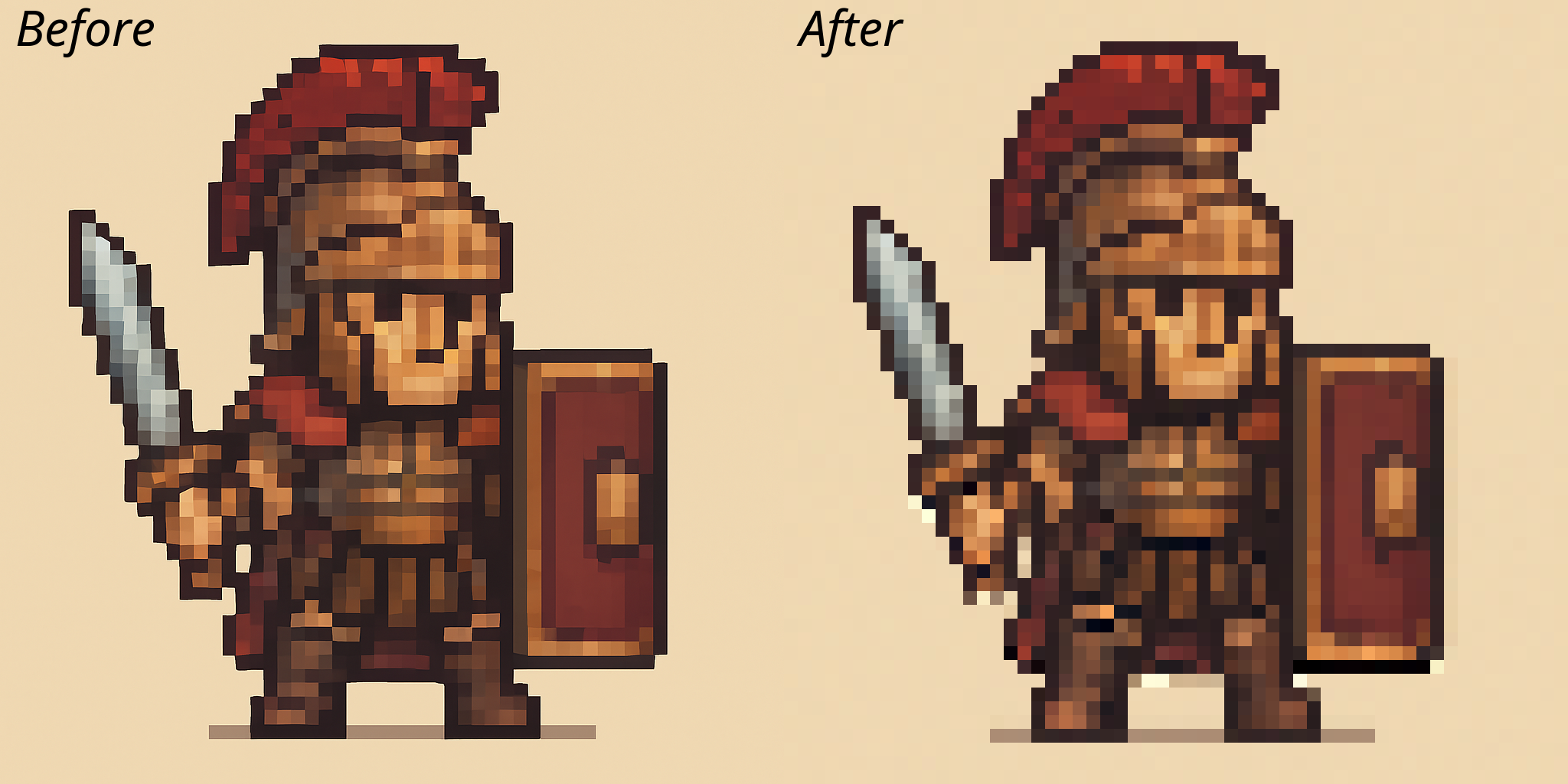
AI image models generate pixel art at high resolution with misaligned pixels, grainy colors, and wrong resolution. SpriteGrid detects the implicit pixel grid and downsamples to clean, single-color pixel art at its true resolution.
pip install spritegrid
spritegrid ai_pixelart.png -o clean_sprite.pngSpriteGrid ships as a ComfyUI custom node, so you can plug it directly into your image generation workflows.
# Option 1: Symlink (recommended for development)
ln -s /path/to/spritegrid/src/spritegrid/comfyui \
  /path/to/ComfyUI/custom_nodes/spritegrid

# Option 2: Copy
cp -r /path/to/spritegrid/src/spritegrid/comfyui \
  /path/to/ComfyUI/custom_nodes/spritegrid
Restart ComfyUI after installing. The SpriteGrid node appears under image/sprite.
| Parameter | Default | Description |
|---|---|---|
min_grid |
4 | Minimum grid cell size to detect (1-32) |
quantize |
8 | Color quantization bits (4-8). Lower = tighter palette |
remove_background |
none | Remove background: none, before, or after detection |
crop |
false | Crop to non-transparent content after processing |
Connect any image generation output to the SpriteGrid node. It will:
- Detect the pixel grid in the AI output
- Downsample to the true pixel art resolution
- Optionally remove background and crop
The node includes a pixelated preview extension that sets image-rendering: pixelated on all ComfyUI preview images, so your pixel art stays crisp instead of getting blurred by browser interpolation.
SpriteGrid is idempotent — processing an already-clean image returns it unchanged. You can safely leave it in your workflow without worrying about double-processing.
Detect the pixel grid in AI-generated art and downsample to clean pixels:
# Basic cleanup
spritegrid ai_pixelart.png -o clean_sprite.png

# Remove background + crop to content
spritegrid ai_pixelart.png -b -c -o sprite.png

# Debug mode: visualize detected grid overlay
spritegrid ai_pixelart.png -d -o debug.png
Options:
| Flag | Description |
|---|---|
-o, --output FILE |
Save output to file |
-b |
Remove background before processing |
-c |
Crop to content after processing |
-d |
Show debug grid overlay |
-i |
Display output image |
-a, --ascii SCALE |
Output as ANSI art |
-m, --min-grid N |
Minimum grid size (default: 4) |
-q, --quantize N |
Color bits: 4-8 (default: 8) |
Convert AI images into sprites at a target resolution:
# 32x32 sprite
spritegrid-crop ai_image.png -o sprite.png -s 32

# 64x48 with padding
spritegrid-crop ai_image.png -o sprite.png -s 64x48 -p 5

# Centered on exact canvas
spritegrid-crop ai_image.png -o sprite.png -s 64 --centerfrom spritegrid import process_sprite, crop_and_scale, crop_and_scale_centered
from PIL import Image
# Full pipeline: remove background + crop + scale
img = Image.open("ai_generated.png")
sprite = process_sprite(img, size=32, remove_bg=True)
sprite.save("sprite_32x32.png")
# Crop and scale preserving aspect ratio
sprite = crop_and_scale(img, target_size=64, padding=5)
# Center on exact canvas size
sprite = crop_and_scale_centered(img, target_size=64)
# Batch process a directory
from spritegrid import batch_process
batch_process("input_dir/", "output_dir/", size=32)SpriteGrid uses signal processing to recover the true pixel grid from upscaled AI art:
- Gradient Analysis — Computes horizontal and vertical gradient profiles across the image
- Peak Detection — Finds dominant spacing using SciPy peak detection with confidence scoring
- Grid Validation — Checks aspect ratio and confidence thresholds to reject false grids
- Idempotence Check — If output dimensions match input, the image is already clean
- Geometric Median Sampling — Each grid cell is downsampled to one pixel using Weiszfeld's algorithm for robust color selection
- Quantization — Optional color depth reduction for tighter palettes
SpriteGrid outputs pixel art at its true resolution (often very small). To display or use the output:
# ImageMagick (nearest-neighbor to preserve sharp pixels)
convert sprite.png -filter point -resize 800% sprite_large.png
img = Image.open("sprite.png")
big = img.resize((img.width * 8, img.height * 8), Image.NEAREST)- Flux produces the cleanest grids and works best with SpriteGrid
- SDXL/SD 1.5 need stronger negative prompts:
blurry, gradient, anti-aliased, smooth - Generate at 512x512 or lower for more detectable grids
- Request transparent backgrounds when possible for easier sprite extraction
- Specify the target sprite size in your prompt:
"32x32 pixel art character"
Contributions welcome. The codebase is structured as:
src/spritegrid/
  detection.py       # Grid detection (gradient analysis + peak detection)
  main.py            # Orchestration and output handling
  crop_and_scale.py  # Sprite extraction pipeline
  segmentation.py    # Background removal (DBSCAN clustering)
  utils.py           # Geometric median, ASCII conversion
  comfyui/           # ComfyUI custom node + pixelated preview extension
# Run tests
uv run pytest tests/

# Install for development
uv syncMIT