



This plugin supports a two-way integration between Mattermost and Jira. Jira Core and Jira Software products, for Server, Data Center, and Cloud platforms are supported. It has been tested with versions 7 and 8.
For versions v3.0 and later of this plugin, support for multiple Jira instances is offered for Mattermost Professional, Enterprise and Enterprise Advanced plans, configured using Administrator Slash Commands.
See the Mattermost Product Documentation for details on installing, configuring, enabling, and using this Mattermost integration.
Follow these steps to spin up Mattermost and Jira locally so you can iterate on the plugin with real APIs.
- Go 1.23.x
- Node 18.x and npm (yarn optional)
- Docker Desktop (for Jira Server + optional Postgres)
- The mattermost repo cloned locally alongside this one
Clone both repos into the same parent directory so the enterprise code is detected automatically, then start the server:
git clone https://github.com/mattermost/mattermost.git
git clone https://github.com/mattermost/enterprise.git

cd mattermost/server
make run
If ./bin/mmctl is not present yet, build it once so you can tweak config from the command line:
go build -o bin/mmctl ./cmd/mmctlConfigure the server so Jira can reach it and so plugins can be uploaded. Either edit config/config.json directly or run the following commands. Note that localhost URLs won't be recognized by the plugin:
./bin/mmctl --local config set ServiceSettings.SiteURL http://host.docker.internal:8065
./bin/mmctl --local config set PluginSettings.Enable true
./bin/mmctl --local config set PluginSettings.EnableUploads true
./bin/mmctl --local config set ServiceSettings.AllowCorsFrom http://host.docker.internal:8065
./bin/mmctl --local config set ServiceSettings.AllowedUntrustedInternalConnections "localhost,127.0.0.1,::1,host.docker.internal"
Restart the server if prompted.
Reachability tips
host.docker.internalworks on macOS with Docker Desktop. On Linux, specify the gateway explicitly when starting Jira (docker run --add-host=host.docker.internal:host-gateway ...) or use your workstation’s LAN IP in bothSiteURLand the commands above.- Whichever hostname you choose, open Mattermost in your browser using that same URL as mismatches can trigger WebSocket CORS blocks and slash-command errors.
- If Jira runs on another machine or you need external access, expose Mattermost via a tunnel or a real domain with valid HTTPS, and update the config values accordingly.
- When you create the Application Link in Jira, supply that same externally reachable Mattermost URL. Jira reuses it to call the plugin’s endpoints.
- You can sanity-check connectivity from the Jira container with
docker exec jira curl -I <your-site-url>.
cd ../mattermost-plugin-jira
npm install
make dist

# optionally let the Makefile upload straight to your dev server
export MM_SERVICESETTINGS_SITEURL=http://host.docker.internal:8065
export MM_ADMIN_USERNAME=admin
export MM_ADMIN_PASSWORD=admin
make deploy
If you prefer to upload manually, go to System Console → Plugins → Upload Plugin, select dist/com.github.mattermost.jira-*.tar.gz, then enable the plugin under Plugin Management.
For a tighter edit loop, leave make watch running – it rebuilds and redeploys whenever you save.
docker pull atlassian/jira-software:9.4.30
docker run --name jira \
  -d -p 8080:8080 \
  atlassian/jira-software:9.4.30
Open http://localhost:8080, request a Server evaluation license from my.atlassian.com, and finish the setup wizard. Wherever the wizard asks for your Mattermost URL, use http://host.docker.internal:8065 so the container can call back into your dev server.
Back in Mattermost, confirm the plugin responds to /jira help, then install your local instance:
/jira instance install server http://localhost:8080The command guides you through creating the Application Link inside Jira, exchanging the consumer key/secret, and configuring webhooks. Once that completes, run /jira connect to link your Mattermost user, and use /jira create or /jira subscribe to test the round trip.
At this point you can edit plugin code, let make watch redeploy, and immediately exercise the change against a real Jira API.
- Plugin immediately disables itself when enabled – check
logs/mattermost.log. If you seeplease configure the Mattermost server's SiteURL, setServiceSettings.SiteURLto a reachable address (e.g.http://host.docker.internal:8065) and re-enable the plugin. - Upload button missing in System Console – ensure
PluginSettings.EnableUploadsistrueinconfig/config.json. You may need to restart the server after changing it. ./bin/mmctlnot found – build it withgo build -o bin/mmctl ./cmd/mmctlfrom themattermost/serverdirectory.- Jira setup page refuses license – generate a Server evaluation key for the Server ID shown in the wizard via my.atlassian.com. Make sure you select the Server deployment type, not Cloud.
XSRF Security Token Missingduring Jira setup – refresh the page or restart the Docker container and re-run the wizard in a fresh browser session; the token expired.- Slash commands complain about unreachable Mattermost URL – Jira is running in a container, so
localhostrefers to the container itself. Usehttp://host.docker.internal:8065(macOS/Linux with Docker Desktop) or your machine’s LAN IP so Jira can reach Mattermost.
Notify your team of the latest updates by sending notifications from your Jira projects to Mattermost channels. You can specify which events trigger a notification - and you can filter out certain types of notifications to keep down the noise.
Each user in Mattermost is connected with their own personal Jira account and notifications for issues where someone is mentioned or assigned an issue is mentioned in your own personal Jira notification bot to help everyone stay on top of their assigned issues.

-
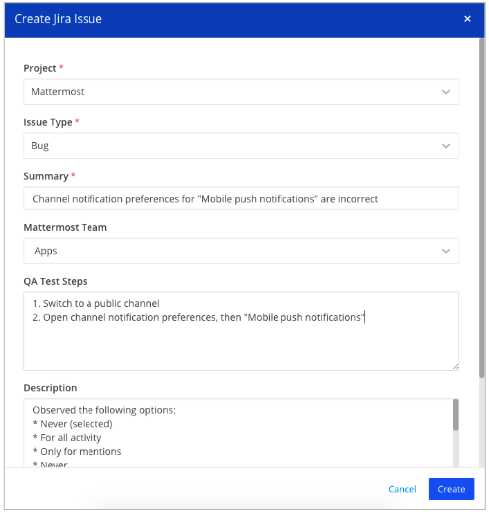
Create Jira issues from scratch or based off of a Mattermost message easily.
-
Without leaving Mattermost's UI, quickly select the project, issue type and enter other fields to create the issue.
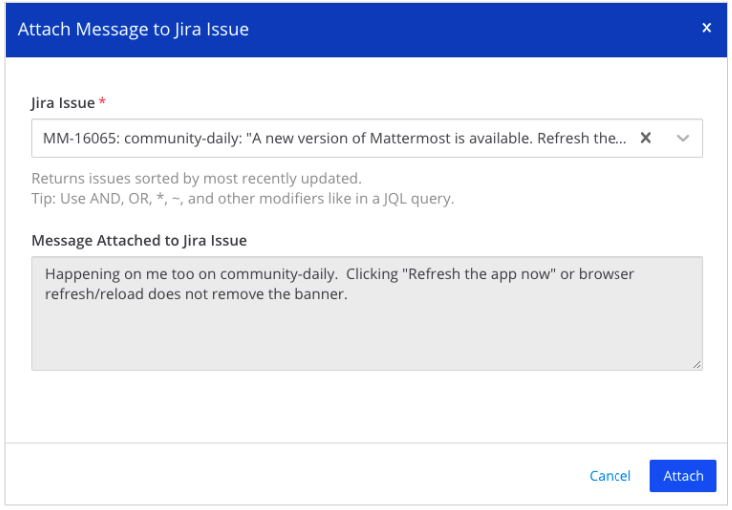
Keep all information in one place by attaching parts of Mattermost conversations in Jira issues as comments. Then, on the resulting dialog, select the Jira issue you want to attach it to. You may search for issues containing specific text.

Transition issues without the need to switch to your Jira project. To transition an issue, use the /jira transition <issue-key> <state> command.
For instance, /jira transition EXT-20 done transitions the issue key EXT-20 to Done.

Assign issues to other Jira users without the need to switch to your Jira project. To assign an issue, use the /jira assign command.
For instance, /jira assign EXT-20 john transitions the issue key EXT-20 to John.
This repository is licensed under the Apache 2.0 License, except for the server/enterprise directory which is licensed under the Mattermost Source Available License. See Mattermost Source Available License to learn more.
This plugin contains both a server and web app portion. Read our documentation about the Developer Workflow and Developer Setup for more information about developing and extending plugins.
The version of a plugin is determined at compile time, automatically populating a version field in the plugin manifest:
- If the current commit matches a tag, the version will match after stripping any leading
v, e.g.1.3.1. - Otherwise, the version will combine the nearest tag with
git rev-parse --short HEAD, e.g.1.3.1+d06e53e1. - If there is no version tag, an empty version will be combined with the short hash, e.g.
0.0.0+76081421.
To disable this behaviour, manually populate and maintain the version field.
To trigger a release, follow these steps:
-
For Patch Release: Run the following command:
make patchThis will release a patch change.
-
For Minor Release: Run the following command:
make minorThis will release a minor change.
-
For Major Release: Run the following command:
make majorThis will release a major change.
-
For Patch Release Candidate (RC): Run the following command:
make patch-rcThis will release a patch release candidate.
-
For Minor Release Candidate (RC): Run the following command:
make minor-rcThis will release a minor release candidate.
-
For Major Release Candidate (RC): Run the following command:
make major-rcThis will release a major release candidate.
Join the Jira plugin channel on our community server to discuss any questions.
Read our documentation about the Developer Workflow and Developer Setup for more information about developing and extending plugins.
This plugin supports both Jira Server (self-hosted) and Jira Cloud instances. There can be slight differences in behavior between the two systems, so it's best to test with both systems individually when introducing new webhook logic, or adding a new Jira API call.
To test your changes against a local instance of Jira Server, you need Docker installed, then you can use the docker-compose.yml file in this repository to create a Jira instance. Simply run docker-compose up in the directory of the repository, and a new Jira server should start up and be available at http://localhost:8080. It can take a few minutes to start up due to Jira Server's startup processes. If the container fails to start with exit code 137, you may need to increase the amount of RAM you are allowing docker to use.
To test your changes against a Jira Cloud instance, we recommend starting a 14-day trial, if you don't have a Jira project to test against. More information can be found here: https://www.atlassian.com/software/jira/try.
If you're interested in joining our community of developers who contribute to Mattermost - check out the current set of issues that are being requested.
You can also find issues labeled "Help Wanted" in the Jira Repository that we have laid out the primary requirements for and could use some coding help from the community.
- For Mattermost customers - Please open a support case.
- For questions, suggestions, and help, visit the Jira Plugin channel on our Community server.
- To report a bug, please open an issue.