
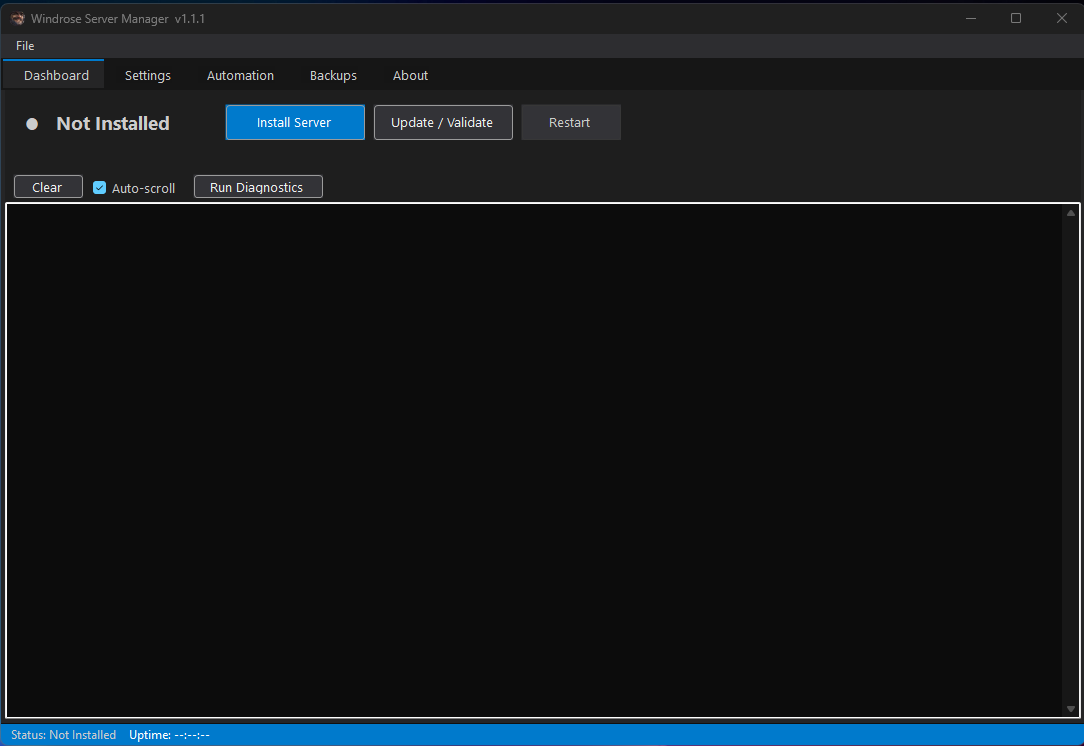
A Windows desktop application for managing a Windrose dedicated server. Built with .NET 10 and WinForms.
- Server Control — Install, start, stop, and restart your dedicated server from the Dashboard
- Automatic SteamCMD — Downloads and manages SteamCMD automatically; no manual setup required
- Live Console Output — Server log streamed directly to the Dashboard with auto-scroll
- Crash Detection & Auto-Restart — Monitors the server process and automatically restarts on crash
- Scheduled Restarts — Interval-based or fixed-time restarts with configurable player warnings
- Automatic Backups — Timed backups of save data with configurable keep count
- Manual Backups — Create, restore, and delete backups on demand from the Backups tab
- World Settings — Edit difficulty preset, combat difficulty, and all gameplay multipliers directly from the UI
- Server Config — Edit server name, password, max players, and P2P proxy address
- Advanced Network Settings — Configure P2P port range, relay mode, encryption, and server timeout behavior
- Discord Webhooks — Notifications for server start, stop, crash, restart, and backup events
- Process Priority — Set the server process priority (Normal, Above Normal, High)
- Dark Theme — Dark UI throughout
- Windows 10/11 (x64)
- .NET 10 Desktop Runtime
SteamCMD and the dedicated server files are downloaded and managed automatically.
- Download the latest release from the Releases page
- Run
WindroseServerManager.exe - Click Install Server on the Dashboard — SteamCMD and the server files are downloaded automatically
- Once installed, start the server once to generate
ServerDescription.json, then configure your settings
Server files are installed to a
WindroseServer\folder next to the exe.
The main button is context-sensitive:
- Install Server — first run, downloads everything
- Start Server — launches the server
- Stop Server — gracefully stops the server
- Reinstall / Validate — shown after a crash, verifies server file integrity
The Update button re-runs SteamCMD to update server files (server must be stopped first).
- Server Config — server name, invite code, password, max players, P2P proxy address. Changes are written to
ServerDescription.jsonand take effect on next server start. - World Settings — world name, difficulty preset (Easy / Medium / Hard / Custom), combat difficulty, and gameplay multipliers. Changes are written to
WorldDescription.jsonand take effect on next server start. - Advanced Network Settings — configures
Game.inioverrides for P2P networking (see below). - Crash Detection & Auto-Restart — enable/disable crash monitoring and configure max restart attempts.
- Scheduled Restarts — interval (every N hours) or fixed times (e.g.
03:00,15:00) with optional pre-restart warnings. - Auto Backup — automatic backups on a configurable interval, keeping the last N backups.
- Discord Webhooks — paste a webhook URL and choose which events trigger a notification.
When Difficulty is set to Custom, the following parameters are available:
| Setting | Default | Range |
|---|---|---|
| Mob Health Multiplier | 1.0 | 0.2 – 5.0 |
| Mob Damage Multiplier | 1.0 | 0.2 – 5.0 |
| Ship Health Multiplier | 1.0 | 0.4 – 5.0 |
| Ship Damage Multiplier | 1.0 | 0.2 – 2.5 |
| Boarding Difficulty Multiplier | 1.0 | 0.2 – 5.0 |
| Co-op Stats Correction | 1.0 | 0.0 – 2.0 |
| Co-op Ship Stats Correction | 0.0 | 0.0 – 2.0 |
| Shared Co-op Quests | true | on/off |
| Immersive Exploration | false | on/off |
Writes a Game.ini override file to configure P2P networking behavior. All values default to 0 / unchecked — the game's baked-in defaults are used unless you change them.
| Setting | Default | Notes |
|---|---|---|
| P2P Port Range (Min/Max) | 0 (auto) | Open these UDP ports in your firewall / VPS security group |
| Encrypt P2P Connections | Off | Encrypts client↔server traffic |
| Force Relay-Only | Off | Hides player IPs from each other; may add latency |
| Server Stop Delay | 0 (auto) | Seconds server stays up after all players leave |
| Owner Timeout | 0 (auto) | Seconds server waits for first player after startup |
Set P2P Proxy Address to 0.0.0.0 in Server Config (already the default). The server uses STUN for NAT traversal — all clients connect to the server, not to each other. Only the server's IP is exposed to players.
Required firewall / security group rule:
| Port | Protocol | Destination | Purpose |
|---|---|---|---|
| 3478 | UDP + TCP | *.windrose.support |
STUN/TURN relay — required for player connectivity |
The P2P port range in Advanced Network Settings is a secondary local bind range override and is rarely needed.
Use the Run Diagnostics button on the Dashboard to automatically check:
- DNS resolution for Windrose servers (system DNS + Google 8.8.8.8)
- STUN/TURN port 3478 reachability
- IPv4 vs IPv6 priority (game requires IPv4)
Common issues:
- Players can't connect — ISP may be blocking port 3478. Ask them to whitelist
*.windrose.supportport 3478 UDP+TCP. - IPv6 causing failures — if diagnostics reports IPv6 has higher priority, run in an admin Command Prompt and restart:
reg add "HKLM\SYSTEM\CurrentControlSet\Services\Tcpip6\Parameters" /v DisabledComponents /t REG_DWORD /d 32 /f - DNS not resolving — try switching to Google DNS (8.8.8.8 / 8.8.4.4) or Cloudflare (1.1.1.1).
If hosting inside a Proxmox VM or LXC container, set the CPU type to host in the VM/container settings. The default kvm64 CPU type can cause the server to fail to start, crash, or exhibit networking instability. Using host exposes the full physical CPU instruction set to the guest and resolves the majority of these issues.
Safe for single-node setups. In a clustered Proxmox environment with live migration, ensure all nodes have compatible CPUs before using
host.
The dedicated server is Windows-only officially, but has been confirmed working on Linux via Wine (tested on Linux Mint 22.3):
- Install Wine and Winetricks
- Install the required runtime:
winetricks vcrun2022 - Install the server via SteamCMD with forced Windows platform:
steamcmd +@sSteamCmdForcePlatformType windows +force_install_dir /home/steam/windrose +login anonymous +app_update 4129620 validate +quit - Launch:
WINEPREFIX=/home/steam/windrose/pfx wine /home/steam/windrose/WindroseServer.exe
Not officially supported — stability and performance are not guaranteed.
All files are stored relative to the exe in the WindroseServer\ folder:
| Path | Purpose |
|---|---|
WindroseServer\ServerFiles\WindroseServer.exe |
Server launcher |
WindroseServer\ServerFiles\R5\ServerDescription.json |
Server name, password, max players |
WindroseServer\ServerFiles\R5\Saved\SaveProfiles\Default\...\WorldDescription.json |
World settings |
WindroseServer\ServerFiles\R5\Saved\Config\WindowsServer\Game.ini |
Advanced network overrides |
WindroseServer\ServerFiles\R5\Saved\SaveProfiles\ |
Save data (backed up by manager) |
WindroseServer\Backups\ |
Backup zip files |
WindroseServer\Logs\ |
Manager log files |
Requires .NET 10 SDK.
dotnet build -c Debug
dotnet publish -c Release
Output: bin\Release\net10.0-windows10.0.26100.0\win-x64\publish\WindroseServerManager.exe