
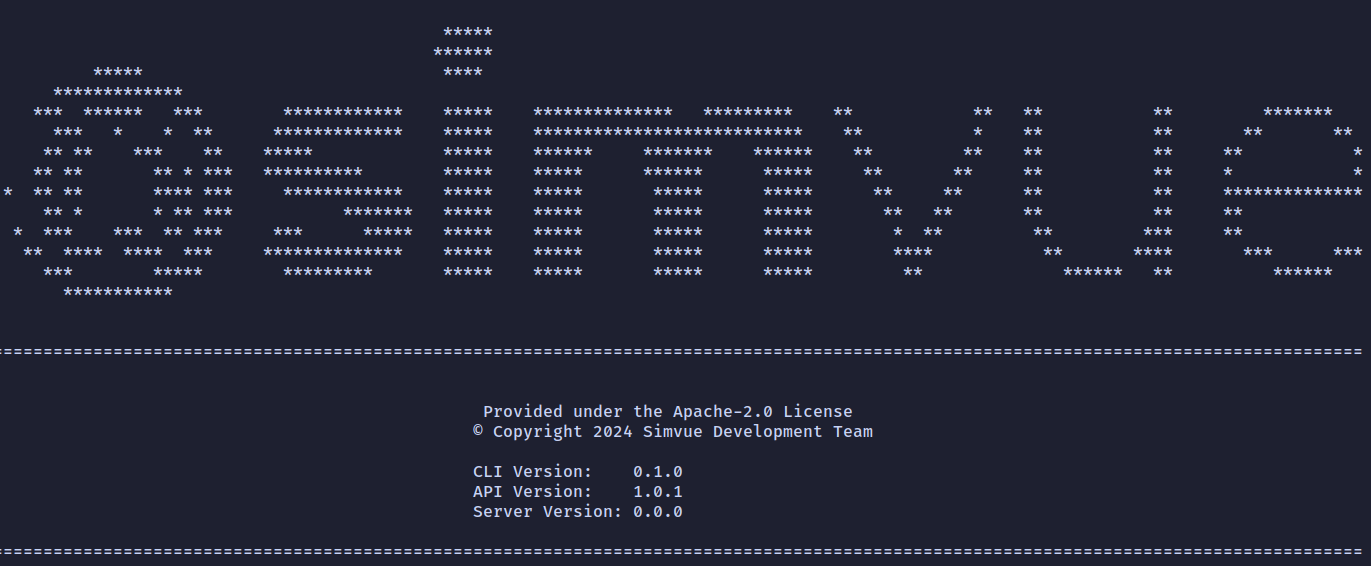




Simvue CLI is a command line interface for interacting with a Simvue server instance. The tool is designed to aid in performing more basic operations compared to the Simvue Python API which should be used instead for more complicated parsing of data and execution of simulations.
- Modifying Simvue configuration
- Retrieving and creating runs
- Retrieving folders
- Monitoring stdout
- Creating user alerts
- Clearing local files
- Version information
- Plain output
- Checking server status
- Citation
You can use Simvue CLI to simplify modification of the Simvue configuration files, to set the server URL:
simvue config server.url <server-url>and to update the token for this server:
simvue config server.token <server-token>By default these settings are applied a configuration file located within the current working directory. To instead set these settings globally use the --global flag.
Run interaction is performed using the run subcommand.
To list all runs on the server use:
simvue run listBy default this will be limited to 20 runs, this behaviour can be changed by using the --count option.
Additional information can be displayed by using the relevant flag:
simvue run list --tags --nameThe full list of available flags is given by running with --help.
By default the output is not formatted, Simvue CLI makes use of the tabulate module to improve displaying of results, simply use the --format option to select from all possibilities, a full list is given under --help:
simvue run list --format rounded_outlineYou can retrieve all information from a run as a JSON string, use of jq to query this output is recommended:
simvue run json <run-id> | jqThe json command is also designed to support piping, we can retrieve the latest run and query it:
simvue run list --count 1 | simvue run json | jqTo create a run execute:
simvue run createthis will return the unique run identifier.
Events and metrics can be logged to a created run, for metrics the input is expected to be a JSON parsible string:
simue run log.metrics <run-id> "{'x': 1, 'y': 2}"For events the input is just the event message as a string:
simvue run log.event <run-id> "Hello World!"Make sure to close your runs! The following commands close or abort the run:
simvue run close <run-id>simvue run abort <run-id>Folders can be retrieved in a similar manner to runs.
simvue folder listBy default the output is not formatted, Simvue CLI makes use of the tabulate module to improve displaying of results, simply use the --format option to select from all possibilities, a full list is given under --help:
simvue folder list --format rounded_outlineIn the rare case where a program writes out only delimited data you can directly log this output as metrics. For example taking the simple bash script:
# Firstly echo headers
echo -e "x\ty"

# Now the data
for i in {1..10}; do
  echo -e "$i\t$((i * 2))"
  sleep 1
done
We could send this data direct to Simvue:
bash my_script.sh | simvue monitorUser (or manually triggered) alerts can be created on the command line:
simvue alert create "my_alert"The additional options --email and --abort define if triggering of the alert sends an email notification and whether when the alert is triggered an abort is called respectively.
The command purge will remove all local Simvue files:
simvue purgeAside from the standard --version flag to the simvue command you can view also the API and server versions via:
simvue aboutIn cases where terminal colors or formatting are unavailable you can instead run with the --plain option applied to the main simvue command, e.g.:
simvue --plain run listServer response can be check using the ping command:
simvue pingIf using Simvue please cite under the information found on the Python API repository.