This script allows you to create custom blocks of text (notes) anywhere, and specify how they are formatted, where they will be inserted into the context, and how long they will last. This allows you to change how far back your memory and WI get placed (instead of them always defaulting to the end of the context). It allows you to split your memory and WI, such that parts are placed in different locations; it allows you to create editor's notes (more on these later); it allows you to tie author's notes or editor's notes to WI, and optionally allows those notes to only persist for a set number of actions after the WI is first called. Pronoun Swapper is included in Notes++. See more at the bottom of the readme.
The easiest way to install this script is to download the zip file, then upload that file in the scripts section of the edit/create screen of one of your scenarios. Scripts can currently only be added to your own scenarios, while you are editing or creating them.
You can also copy the text from shared to the shared tab of scripts, and so on for inputModifier and contextModifier.
Notes can be placed anywhere (prompt, input text, memory, author's note, WI), but must have the following pattern:
Enclose notes with curly brackets { }
Put a note code on the left side of the brackets, constructed as such:
An optional duration # gets placed first.
If included, the note will only be injected in the context while the action count is less than the action count where the note was first recorded plus the duration (so with a duration of 3, a note will be present for the current action and the next two actions).
If the duration # is left out or 0, the note will get injected in the context indefinitely (so long as the note remains). For instance, a duration 0 note put in a WI will still stop getting injected once the WI stops getting loaded into the context (and thus its note stops being read). Notes with a duration # will also stop getting injected if the note is removed before their duration ends.
Next place an optional +# delay.
If included, the note will not go into effect until # actions after it is first encountered.
Next place an optional format shorthand, comprised of a few letters, indicating how the note will be formated. See the formats below.
Next place a mandatory location # that determines how many lines back in the context the note will be placed
If the location # is 0, the note will be injected directly after (in front of) the most recent user text. If the location # is 1 or more, the note will be injected directly behind # lines in the context.
Finally place a mandatory colon : to separate the note code from the text.
Formats
Formats are the letters included in note codes; each gets injected differently. text represents the main text of your note.
{an#: text} or {#an#: text} or {+#an#: text} or {#+#an#: text} gets formatted then injected as [Author's note: text]
{en#: text} or {#en#: text} or {+#en#: text} or {#+#en#: text} gets formatted then injected as [Editor's note: text]
{ens#: text} or {#ens#: text} or {+#ens#: text} or {#+#ens#: text} gets formatted then injected as [Editor's note: this scene:< text>.]
If no format is included, the note will be left unformatted.
{#: text} or {#,#: text} or {+#,#: text} or {#+#,#: text} does not get formatted, then gets injected as text
Additional Info
Notes with a duration of 1 use a special once timing that ensures they are used exactly once, at the earliest opportunity.
For unformatted notes with a duration and/or delay, separate the duration/delay # and the location # with a ,.
The text of the note can contain any special characters and line breaks. The only characters you cannot include within the text of a note is curly brackets { }. The only curly brackets in a note should be the ones enclosing it.
If text is empty or only spaces, the note will be removed from the context but not injected back in (keeping blank notes from taking up characters and throwing off the AI).
Notes with location # > 0 will only be injected if # or more lines of text exist for them to be placed behind.
If multiple notes request injection at the same line, they will be injected by formatting code in the following order: {an#: text}, {#: text}, {en#: text}, {ens#: text}. If multiple notes with the same formatting are injected, they will be injected in the order they are encountered in the context (typically: WI, memory, prompt/previous inputs, A/N, input text).
Special formats directly modify the input or output, and do not get injected into the context. They follow much of the rules for regular formats, but do not use a location #. The text in special notes does not get formatted, and so they behave much like unformatted notes. The format code for special formats instead determines where the text gets placed.
Input Override: {io: text} or {#io: text} or {#+#io: text} replaces the input with text
Input Prefix: {ip: text} or {#ip: text} or {#+#ip: text} places text into input, just before the regular input.
Input Suffix: {is: text} or {#is: text} or {#+#is: text} places text into input, just after the regular input.
Output Override: {oo: text} or {#oo: text} or {#+#oo: text} replaces the output with text
Output Prefix: {op: text} or {#op: text} or {#+#op: text} places text into output, just before the regular output.
Output Suffix: {os: text} or {#os: text} or {#+#os: text} places text into output, just after the regular output.
Message: {m: text} or {#m: text} or {#+#m: text} places text into state.message, displaying a message at the bottom of the screen.
Multiple message special format notes get added together into one state.message, separated by newlines.
Display: {d: key: value: color} or {d#: key: value: color} or {#d#: key: value: color} or {#+#d#: key: value: color} makes a state.displayStats display at the top of the screen, with text of key: value displayed in color.
For Display, the # following d determines its location in the display, which can have up to 9 lines, each with separate notes. Lower numbers are higher up in the display; 0 is the highest; the # is optional, and if left out it will be counted as 0. If multiple notes use the same display line #, they will overwrite one-another.
Color (and the colon preceeding it) are also optional. If left out, it will use the user's default UI color.
Additional Info
When using multiple special formats that affect an output or an input, first the in/output override will apply, replacing the original in/output; then, the prefix will apply, adding the prefix text to the beginning of the overriden in/output; then the suffix will apply, adding the suffix text to the end of the overriden in/output.
When using multiple of the same special format, they will be combined in the order they are encountered (typically: WI, memory, prompt/previous inputs, A/N, input text).
Special formats that modify inputs will only take effect on inputs after the note is encountered.
If you include {notes} as a key in a WI, that WI entry will always be checked for Notes++ formatted notes, whether or not the WI itself gets called. This allows you an alternate space to store Notes if you want to use Memory for other things; it also allows you to create a scenario with hidden Notes.
Any number of WIs can have a {notes} key, and all will be checked for Notes.
If a WI has regular keys and the {notes} key, it will also function as a regular WI; Notes++ formatted text will be deleted from it when it enters context if it gets regularly called with a normal key, as usual.
Inputting /lmi shows you the last full context sent to the AI. This shows you the text injected by this script, as well as other text that is normally hidden, such as Author's notes, Memory, and WI. This lets you check to make sure all of your notes get formatted and injected as you expect they should.
Notes++ uses a recorded cache of notes with duration and delay numbers to handle them properly. In very long adventures, this may cause a slowdown. Inputting /reset clears that cache. This means that any already-triggered duration Notes can be retriggered, and Notes with a delay will go on their delay again.
The following are an example prompt, input text, memory, author's note, and WI, as well as the context they produce (which would be shown with /lmi).
Prompt
You are Gordita, a wizard's apprentice.
You are an animate taco, who flies around on clouds of cheese puffs.
Your wizard, Master Bell, has gone missing from the tower of Tel Nacho.
You must go on a quest to rescue Master Bell.
{an2: this is a story about cheese and betrayal.}
Input Text
You cautiously look around the tower. {en1: describe the tower layout}
Memory
You and Master Bell have lived in the tower alone for nearly a decade.
However, last week, Master Bell brought home a kitten named Fluffles.
{3-3: [ Fluffles is an evil kitten who lurks around the tower.]}
Author's Note
{an4: scene: fantasy, wizard, tower; genre: murder mystery}
WI
Keys: tower, kitten, fluffles
Entry:
Fluffles is actually a literal demon pretending to be a cat. Fluffles has secretly killed Master Bell.
{2ens0: Fluffles will leap from the shadows and attack you}
Result / Context / LMI -- Action Count: 2
Fluffles is actually a literal demon pretending to be a cat. Fluffles has secretly killed Master Bell.
You and Master Bell have lived in the tower alone for nearly a decade.
However, last week, Master Bell brought home a kitten named Fluffles.
You are Gordita, a wizard's apprentice.
[Author's note: scene: fantasy, wizard, tower; genre: murder mystery]
You are an animate taco, who flies around on clouds of cheese puffs.
[ Fluffles is an evil kitten who lurks around the tower.]
Your wizard, Master Bell, has gone missing from the tower of Tel Nacho.
[Author's note: this is a story about cheese and betrayal.]
You must go on a quest to rescue Master Bell.
[Editor's note: describe the tower layout]
You cautiously look around the tower.
[Editor's note: this scene:< Fluffles will leap from the shadows and attack you>.]
Result / Context / LMI -- Action Count: 3
Fluffles is actually a literal demon pretending to be a cat. Fluffles has secretly killed Master Bell.
You and Master Bell have lived in the tower alone for nearly a decade.
However, last week, Master Bell brought home a kitten named Fluffles.
You are Gordita, a wizard's apprentice.
[Author's note: scene: fantasy, wizard, tower; genre: murder mystery]
You are an animate taco, who flies around on clouds of cheese puffs.
[ Fluffles is an evil kitten who lurks around the tower.]
Your wizard, Master Bell, has gone missing from the tower of Tel Nacho.
[Author's note: this is a story about cheese and betrayal.]
You must go on a quest to rescue Master Bell.
[Editor's note: describe the tower layout]
You cautiously look around the tower.
The shadows rustle menacingly. You turn around, but are too late. Fluffles leaps at you!
Result / Context / LMI -- Action Count: 4
Fluffles is actually a literal demon pretending to be a cat. Fluffles has secretly killed Master Bell.
You and Master Bell have lived in the tower alone for nearly a decade.
However, last week, Master Bell brought home a kitten named Fluffles.
You are Gordita, a wizard's apprentice.
[Author's note: scene: fantasy, wizard, tower; genre: murder mystery]
You are an animate taco, who flies around on clouds of cheese puffs.
Your wizard, Master Bell, has gone missing from the tower of Tel Nacho.
[Author's note: this is a story about cheese and betrayal.]
You must go on a quest to rescue Master Bell.
[Editor's note: describe the tower layout]
You cautiously look around the tower.
The shadows rustle menacingly. You turn around, but are too late. Fluffles leaps at you!
You blast Fluffles away from you with the power of cheesy goodness.
Editor's notes are basically super focused Author's notes that can be used to narrowly focus the AI's attention. For a more detailed rundown on how to use them, see the google doc about them here: https://docs.google.com/document/d/12HDSN4wm9hMF4nRGWtkuT_RUkwx2Gqr2qhNSOORbSMk/edit?usp=sharing
This script is bundled into Notes++. It is also available in a standalone form here: https://github.com/FaraB-AID/Misc-Scripts/tree/main/Single-Scripts
This script has the scenario user fill in a placeholder that describes a gender or pronoun, then substitutes pronoun replacement markers made in the prompt with pronouns of the appropriate gender. This lets you holistically refer to a person of chosable gender in the prompt with pronouns.
Placeholder
This script requires you to use a prompt placeholder, which the user will fill in with a response signifying a gender for later pronoun use. The placeholder must be formatted as such:
{ppl:${placeholder text}}
The placeholder text can be anything you'd normally put as a placeholder, such as Is your romantic partner a man, woman, or nonbinary? or Choose a pronoun for your customer: he/she/they
The placeholder as formatted above will be removed from the final prompt in its entirety (both the bracketing and the text the user responds with). This allows you to put the placeholder anywhere in the prompt for maximum flexibility (as placeholders gets presented to the user in the order they are encountered).
The script will scan the text the player inputs into the placeholder and determine pronoun type based on their entry.
she|her|hers|herself|feminine|female|fem|woman in the placeholder result in fem pronouns being used.
he|him|his|himself|masculine|male|masc|man in the placeholder result in masc pronouns being used.
they|them|their|theirs|themselves|neuter|neutral|neutroi|nonbinary|other or a lack of detectible gender signifiers in the placeholder result in neutral pronouns being used.
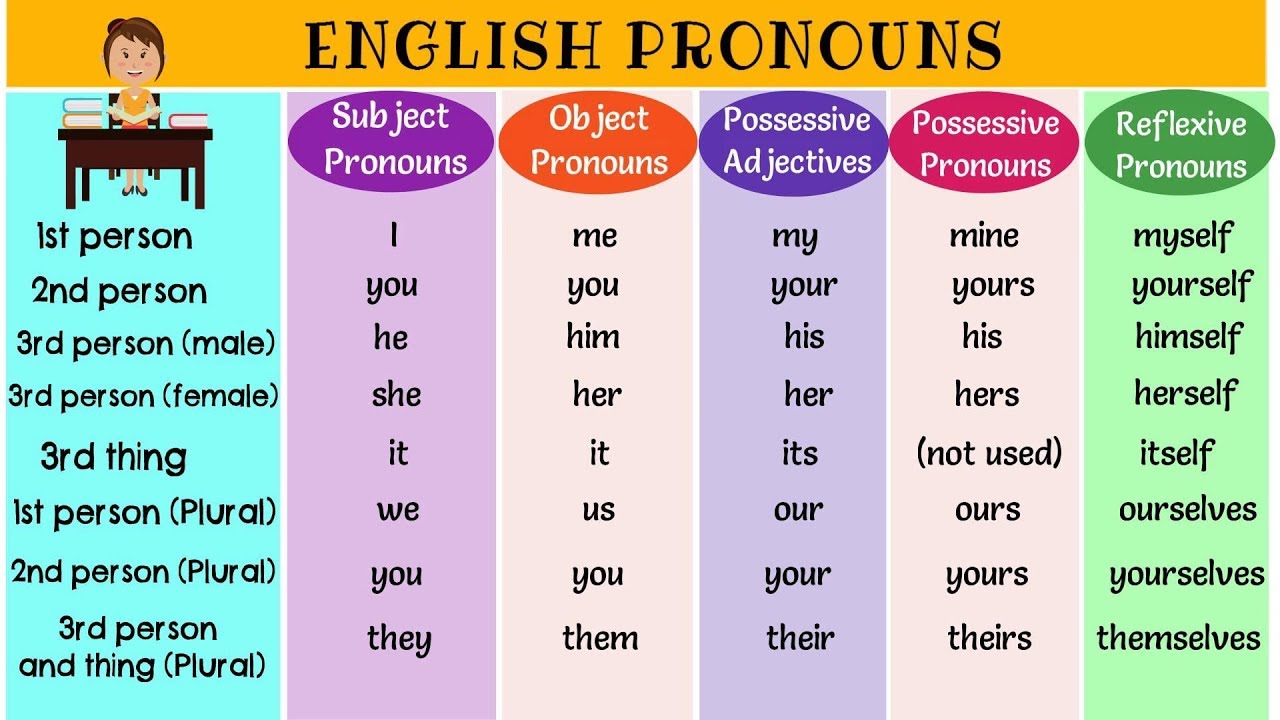
Replacement Markers There are five replacement markers, corresponding to the five types of pronouns in English (refer to the chart below for reference). Put replacement markers into your prompt, where pronouns of the appropriate gender (as determined by the placeholder above) should get placed. If the first letter of a replacement marker is capitalized, the replacement pronoun's first letter will also be captialized.
Note: Replacement markers will only work in the prompt, not memory/AN/WI; and the script only runs once, on the prompt (initial input).
{sp} gets replaced with she|he|they
{op} gets replaced with him|her|them
{pa} gets replaced with his|her|theirs
{pp} gets replaced with his|hers|theirs
{rp} gets replaced with himself|herself|themselves